Get keywords and a summary from any website save it to Airtable

The automation will extract data from websites, create brief summaries and identify keywords, then store the results in Airtable.
Bardeen no longer supports Autobooks & Playbooks. Learn more about the new Bardeen.
Get current page URL
Action
Get tabs
Action
Get current page as HTML
Action
Convert html to text
Action
Extract keywords from text
Action
Merge text
Action
Get summary of a text by OpenAI
Action
Add data to Airtable
Action
Steps:

Bardeen's playbook "Get keywords and a summary from any website save it to Airtable" is designed to help businesses quickly gather information from web content for research and data sourcing purposes. By automating the process of extracting key information such as keywords and summaries from websites, and saving them into Airtable, teams can efficiently organize their research and stay ahead in market analysis or content strategy.

Here's a step-by-step guide to how this automated workflow functions:

  • Step 1: Get Open Tabs - The workflow starts by retrieving all open tabs in your browser that match a specified URL, ensuring that you're working with the correct web page.
  • Step 2: Extract Current Page URL - Next, Bardeen captures the URL of the current page to ensure that the correct content is being processed.
  • Step 3: Get Current Page as HTML - Bardeen then obtains the full HTML content of the current page, which will be used to extract text content for summarization and keyword analysis.
  • Step 4: Convert HTML to Text - This HTML content is converted into plain text to facilitate the extraction of keywords.
  • Step 5: Extract Keywords with OpenAI - Using OpenAI's advanced AI models, the workflow identifies and extracts key phrases and terms from the text content of the page.
  • Step 6: Merge Text - The extracted keywords are then concatenated into a single string, making it easier to manage and store.
  • Step 7: Summarize Text with OpenAI - OpenAI is also used to generate a concise summary of the text content, providing a quick overview of the webpage's subject matter.
  • Step 8: Save to Airtable - The keywords and summary are saved to an Airtable base, which acts as a powerful, flexible database for all the extracted information.

This workflow is ideal for businesses involved in datasourcing and research, enabling them to gather actionable insights quickly and efficiently.

The new Bardeen – Find leads no one else does:

With our new Bardeen version, you can easily extract data from any website and discover new leads across the web. After extracting data from a website, use Bardeen’s powerful automation tools to validate and enrich your data, run additional scrapers on linked pages, or leverage AI to qualify leads and generate content automatically. Once your data is ready, you can easily export it to CSV, Google Sheets, Airtable, or Notion for further analysis and reporting.
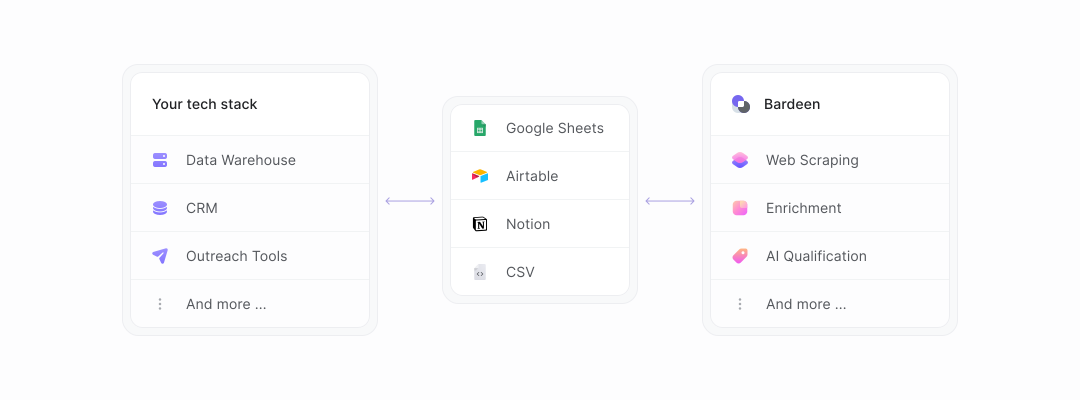

How Bardeen integrates with your existing system:
With Bardeen, you can easily import and export data to spreadsheets or CSV files, then push it to your favorite CRM or outreach tool — like Salesforce, HubSpot, Pipedrive, Apollo.io, or any platform that supports CSV. Most tools offer built-in import options or third-party solutions, making integration seamless and keeping your workflow uninterrupted.
Data Sync between Bardeen and your Tech Stack

"Our Sales and Ops teams can do more in less time to help serve our customers better."

Alex Bouaziz
Co-Founder & CEO at deel.
Enterprise-grade security

SOC 2 Type II, GDPR and CASA Tier 2 and 3 certified — so you can automate with confidence at any scale.

Frequently asked questions

What is Bardeen?
What tools does Bardeen replace for me?
Who benefits the most from using Bardeen?
How does Bardeen integrate with existing tools and systems?
What are common use cases I can accomplish with Bardeen?
By clicking “Accept”, you agree to the storing of cookies. View our Privacy Policy for more information.