Do you want to export contacts from HubSpot? Whether you’re migrating to another platform, doing an email campaign, or making a backup, it’s crucial to ensure that you can export your contacts without errors or inaccuracies.
In this article, we will guide you through a step-by-step process of easily exporting your contacts from HubSpot, using both native features and third-party tools. Let’s get started!
Here are the steps to export contacts from HubSpot.
Step 1: Click Contacts in the top-left corner of the screen and Contacts in the drop-down menu.

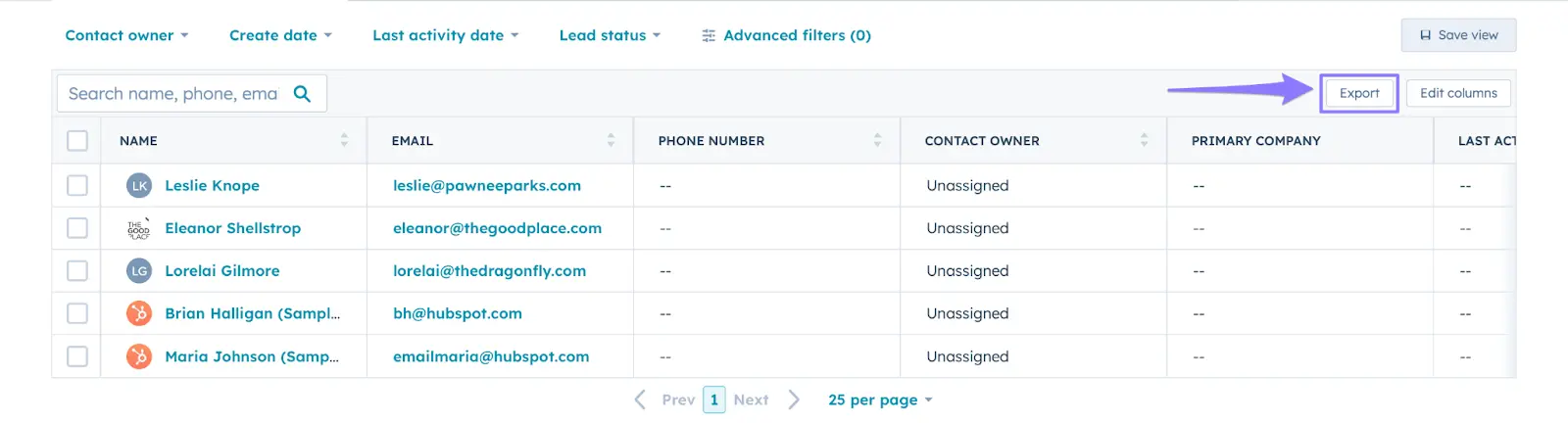
Step 2: Click Export in the top-right of the table. If you only want to export contacts based on certain criteria, click Add view to narrow down the selection.
Step 3: In the Export view dialog box, make the necessary adjustments, including property selection, file format, and language. Once done, click Export.
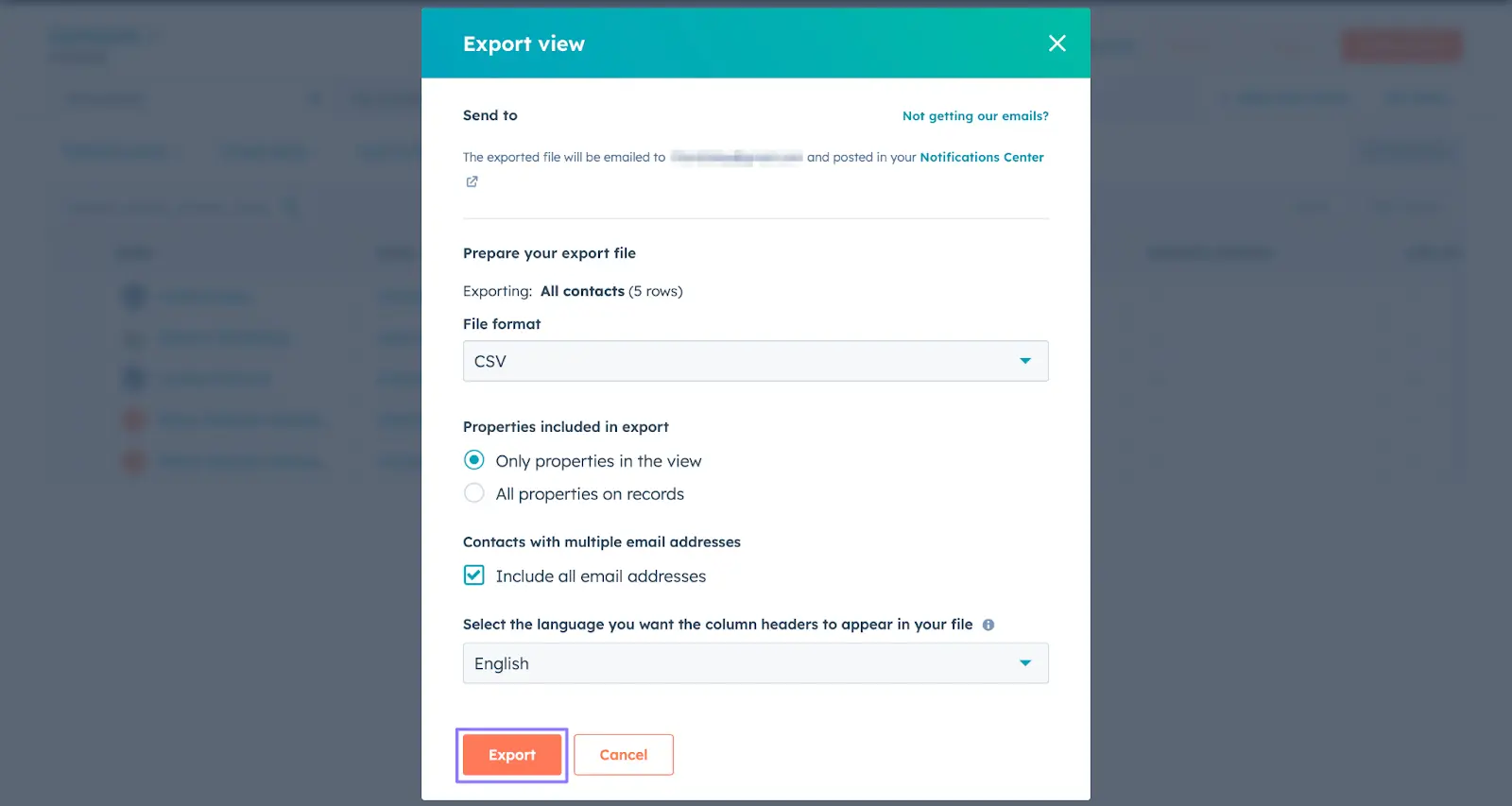
Depending on the size of your contact list, it might take a minute or two for HubSpot to send you the download link to your export file.

Once you download the export file to your computer, you’re free to use it as necessary.
If you want to export a specific contact list, follow these steps.
Step 1: Click Contacts in the top-left corner of the screen and Lists in the drop-down menu.
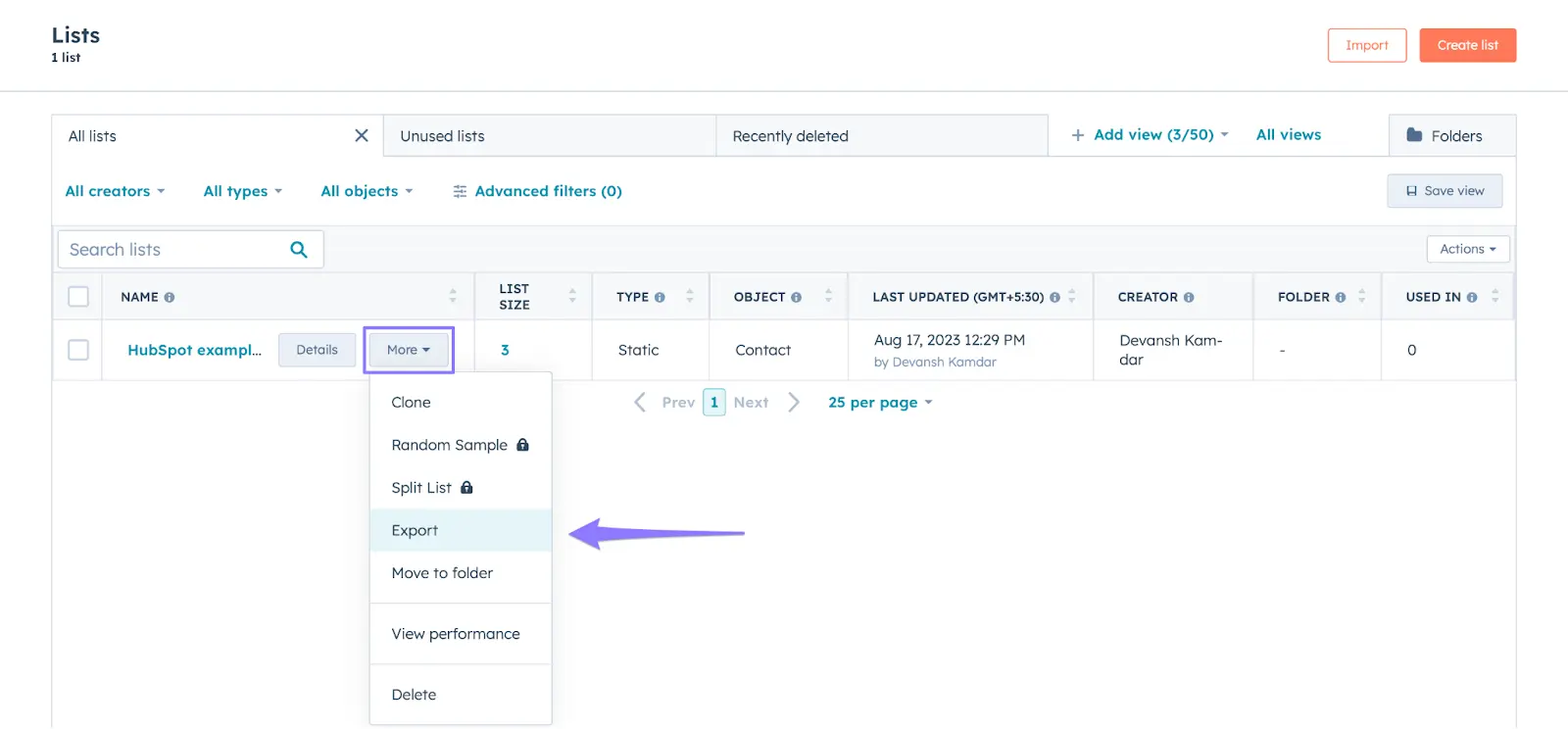
Step 2: Hover the mouse pointer over the list you want to export. Click the More button and select Export.
Step 3: You can click Select all properties or specify which properties you want to include in your export file. Once done, click Next.

Step 4: In the dialog box, specify the preferred file format and language and click Export.
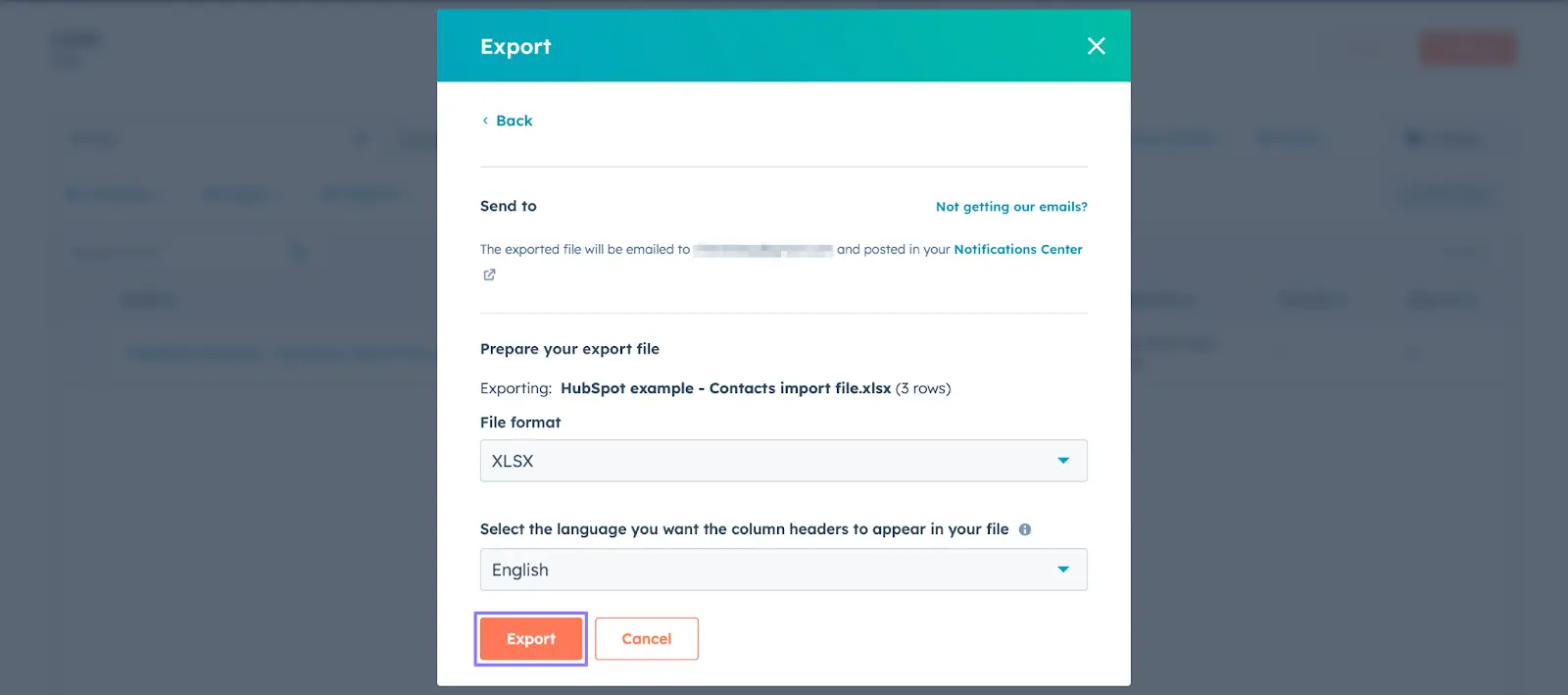
You’ll receive an email with a download link to the export file shortly.
If you only want to export an individual contact, follow these steps.
Step 1: Click Contacts in the top-left corner of the screen and Contacts in the drop-down menu.
Step 2: Select the contact you want to export.
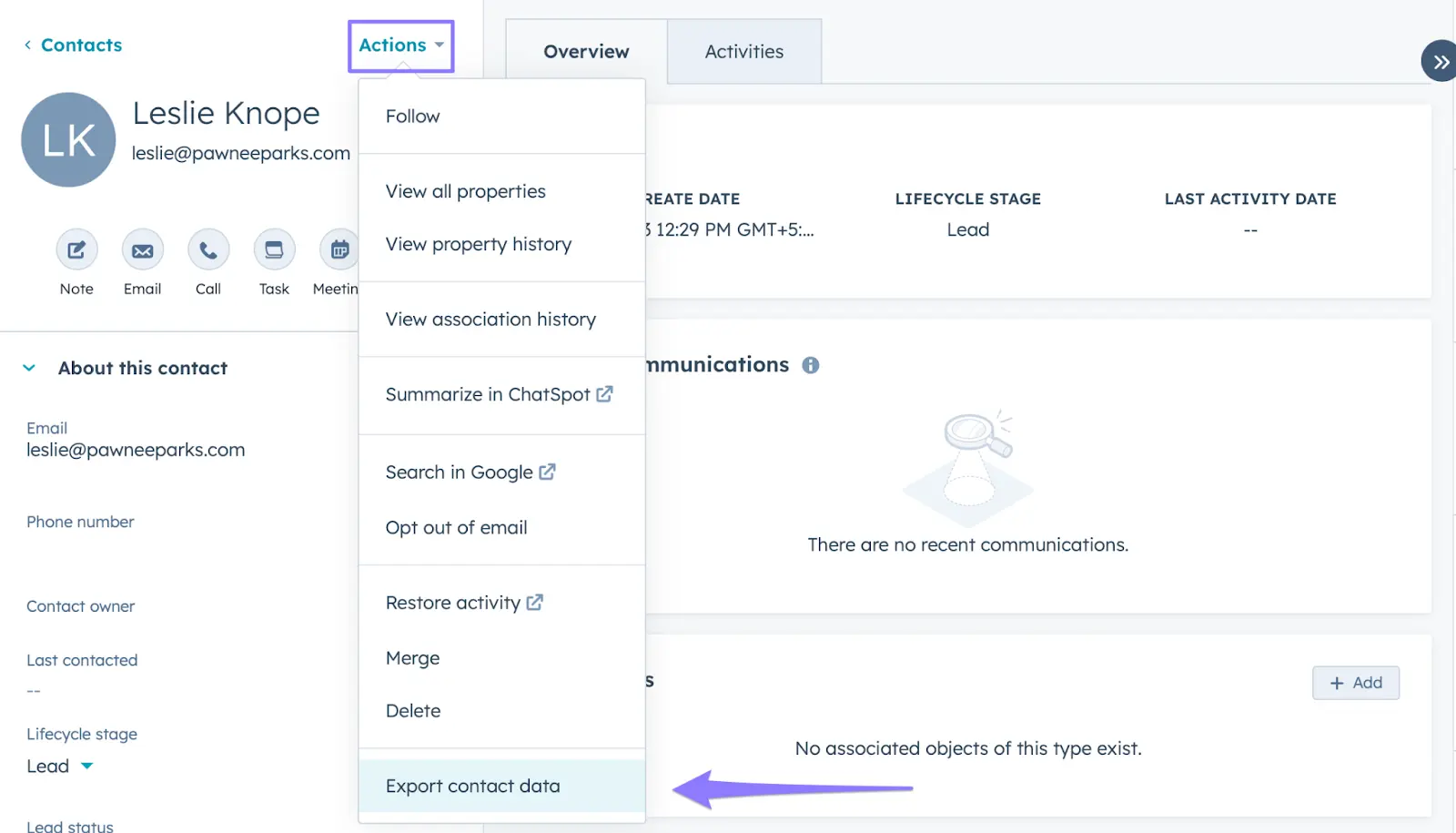
Step 3: Click Actions and select Export contact data.
Step 4: In the dialog box, specify the data you want to export about that contact, including activities and associations. Click Export.
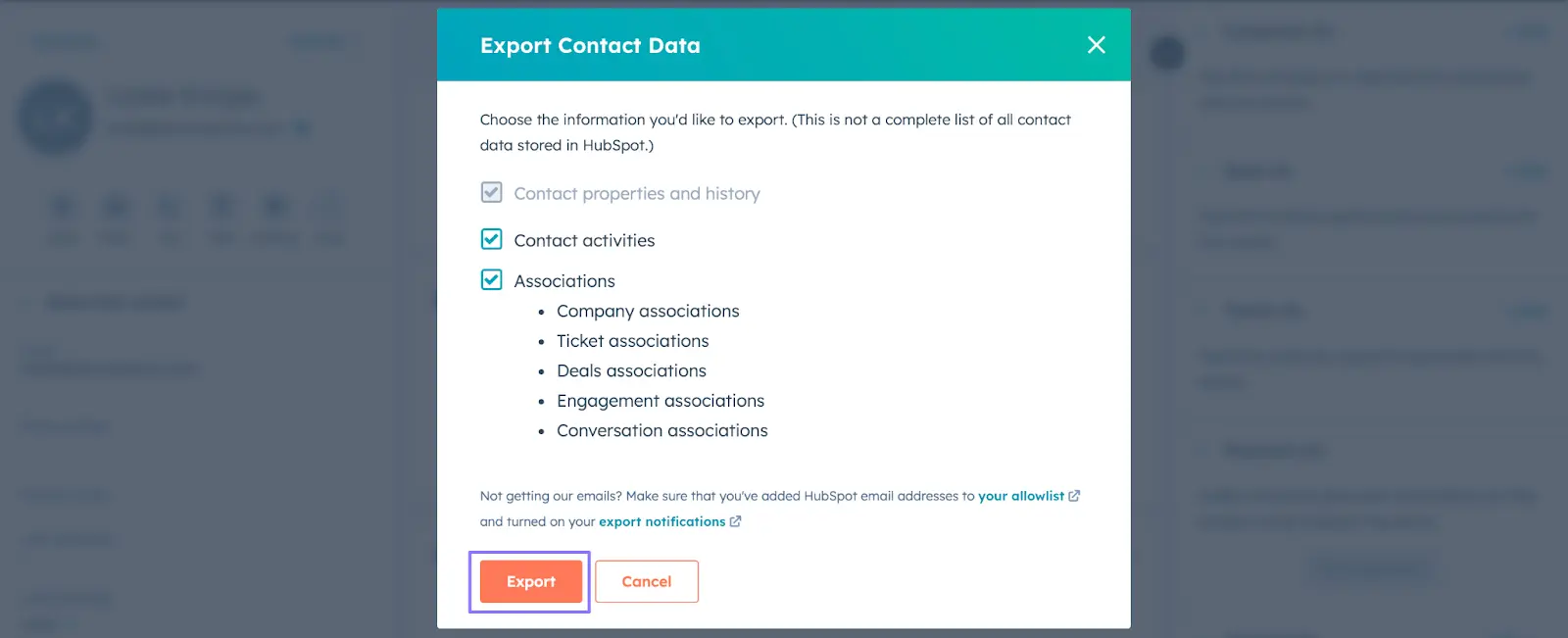
Once processed, you’ll receive a link to download the export file.
Bardeen is a no-code workflow automation extension for Chrome. It’s integrated with HubSpot and over fifty productivity and sales apps. It’s an excellent alternative to copy your HubSpot data across platforms seamlessly.
Here are some automations to copy your HubSpot data to other platforms, like Salesforce, Google Sheets and Notion.

This automation will copy all HubSpot contacts to Salesforce, updating pre-existing ones with new details. You can also export an individual HubSpot contact. This automation is available for Google Sheets, Notion and Airtable.
Now, let’s look at how you can use Bardeen to copy other HubSpot data to various platforms.
Similar to the above automation, this automation copies HubSpot companies to Salesforce. It includes company name, annual revenue, number of employees, and contact details. You can also copy an individual company to Salesforce.

Check this page to learn how to connect Salesforce with HubSpot.
If you want to copy your HubSpot products to Airtable, use this automation. Once you specify the Airtable database and map the information, it’ll copy all products, including name, description, price, and other details.
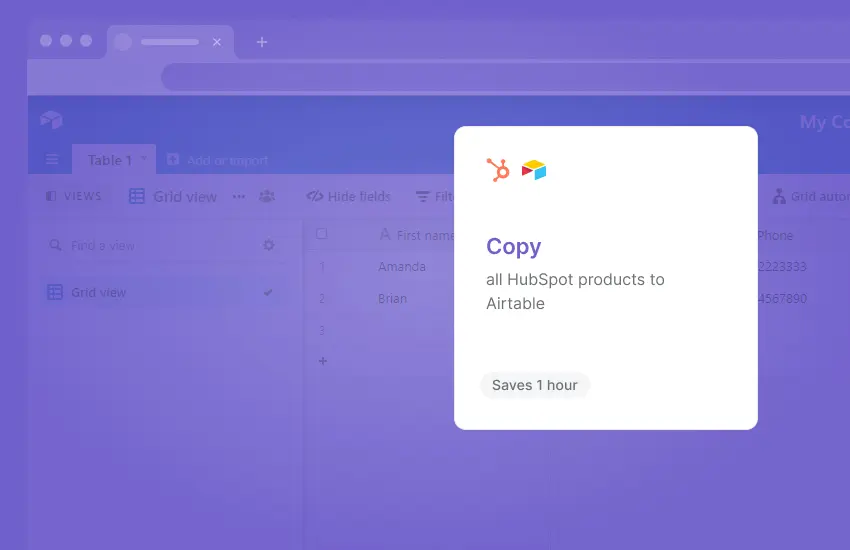
This automation is also available f Google Sheets and Notion.
Want to copy your HubSpot deals to other platforms? Using this automation, you can copy all your HubSpot deals to Notion in just a few clicks.
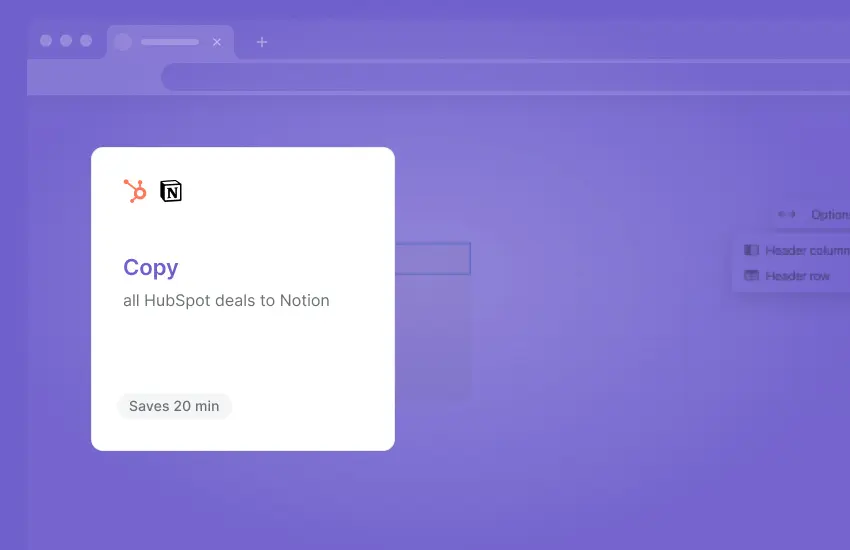
If you’re not a Notion user, this automation is also available for Airtable and Google Sheets.
We’ve also got you covered when it comes to HubSpot tickets. Using this automation, you can copy all your HubSpot tickets to Asana. It’ll copy details like ticket pipeline, stage, and priority.
You can also do the same for many other platforms, like Airtable, ClickUp, Google Sheets, and Notion!
In addition to the above mentioned apps and platforms, Bardeen can help you connect Gmail with HubSpot to streamline your workflow. Check this article to learn how to connect and add HubSpot to Gmail.
The goal of using automations is to free up your time to focus on nurturing your customer relationships and growing your business. If you want to dive deeper, check these articles to explore more HubSpot automations and integrations.
It takes significant time and resources to build a valuable contacts list, so exporting it can be an intimidating task. Fortunately, if you follow the above steps, you can efficiently export your HubSpot contacts without any issues.
Beyond contacts, knowing how to export data from HubSpot can enhance your data management workflow. So, why wait? Follow the above steps and export your HubSpot contacts today!
If you aim to become better at using HubSpot, you’ll love to read our article about how to use HubSpot for sales next.







SOC 2 Type II, GDPR and CASA Tier 2 and 3 certified — so you can automate with confidence at any scale.