This automated workflow fetches a contact from Pipedrive based on specified matching criteria and updates a Google Sheet with the contact's details.
First, it searches for a contact in Pipedrive using the provided matching criteria. Once the contact is found, it then appends their details—such as name, email, phone number, and organization—to a specified Google Sheets tab. This workflow is particularly useful for:
Note: While this workflow is designed for Pipedrive and Google Sheets, Bardeen supports integrations with other CRMs and spreadsheet tools, such as Salesforce, HubSpot, and Airtable. You can customize this workflow to fit your specific needs.
Use Bardeen to streamline your contact management process.
To get started, install the Bardeen app on your device by visiting the official website.
After installation, open the Magic Box within the app and input this command:
Get Pipedrive Contact, Update GoogleSheets
Ensure that you have the necessary workflow integrations configured, including Pipedrive for fetching contacts and Google Sheets for updating or appending information.
With everything set, run the workflow. This workflow will:
Exporting data from Pipedrive to Google Sheets is a critical task for businesses looking to streamline their sales and customer management processes. Whether you're looking to back up your CRM data, run analyses, or create advanced reports, integrating Pipedrive with Google Sheets can significantly enhance your productivity. This can be achieved manually by exporting data as CSV files from Pipedrive and importing them into Google Sheets, or through automation tools like Coupler.io and Flatly, which allow for scheduled data exports directly to your sheets.
Automate the process of exporting Pipedrive data to Google Sheets to keep your customer contact lists updated across platforms. Use Bardeen to streamline your contact management process.
The integration between Pipedrive and Google Sheets enables real-time data synchronization, ensuring that your Google Sheets always contain the most up-to-date information from your Pipedrive CRM. This integration can be facilitated through various add-ons and tools available in the Pipedrive Marketplace or by using automation platforms such as Zapier, which supports creating automated workflows (Zaps) to connect Pipedrive with Google Sheets directly.
Pipedrive's Marketplace offers a plethora of add-ons and integrations that extend the CRM's functionality, including tools for exporting data to Google Sheets. These add-ons not only simplify data export tasks but also enable advanced data manipulation and analysis directly within Google Sheets. By leveraging these tools, businesses can automate data entry, visualize customer journeys, and enhance sales processes without manual intervention.
Discover how Bardeen's automated workflow can transform your Pipedrive and Google Sheets integration, making data management more efficient. Download Bardeen and experience the ease of automation.
In conclusion, integrating Pipedrive with Google Sheets through direct exports, real-time synchronization, and utilizing add-ons significantly enhances data management and analysis capabilities, driving productivity and informed decision-making.
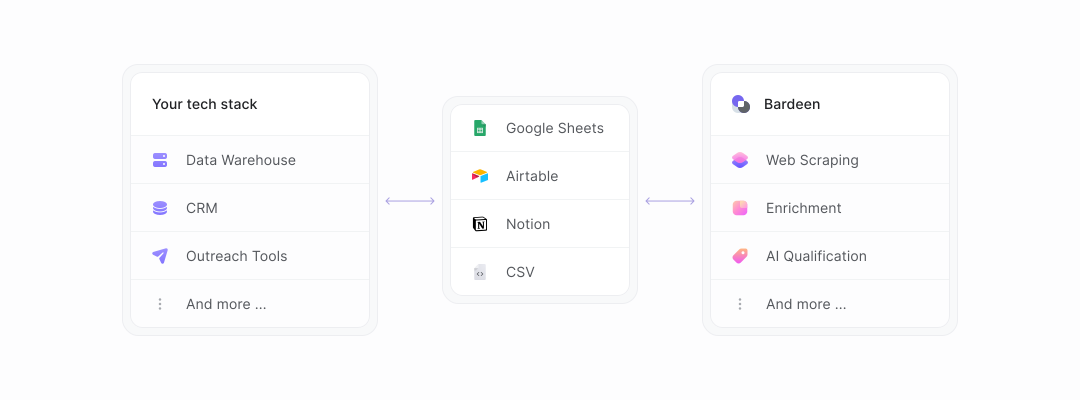
With our new Bardeen version, you can easily extract data from any website and discover new leads across the web. After extracting data from a website, use Bardeen’s powerful automation tools to validate and enrich your data, run additional scrapers on linked pages, or leverage AI to qualify leads and generate content automatically. Once your data is ready, you can easily export it to CSV, Google Sheets, Airtable, or Notion for further analysis and reporting.






SOC 2 Type II, GDPR and CASA Tier 2 and 3 certified — so you can automate with confidence at any scale.