This workflow fetches contacts from Pipedrive by a specific tag and adds them as new pages in a Notion database.
The process begins by fetching a person from Pipedrive using a specified tag. It then automatically creates a new page in a Notion database, populating it with the contact's details such as Name, Email, Phone, and Organization. Some use cases are:
Note: This workflow is highly flexible and can be adjusted to match different tags or add contacts to other databases like Airtable or Google Sheets. The automation can be extended with additional actions, such as updating existing contacts or sending notification messages.
Leverage this workflow to enhance data synchronization between your CRM and project management tools with Bardeen.
Begin by installing the Bardeen app on your device to get started.
Open the Bardeen Magic Box feature and input the following prompt:
Get Pipedrive Contacts tag, Add new Contact to Notion
Set up the integrations required for the workflow. This includes Pipedrive for fetching contacts and Notion for adding contact details.
To execute the workflow, run it. It is designed to:
Exporting data from Pipedrive can be achieved through various methods, catering to different needs. Whether you're looking to export individual deals from the detail view, generate custom reports from the list view, or utilize the 'Export data' option for comprehensive data extraction, Pipedrive offers flexibility. Additionally, exporting insights or user access data provides a rounded approach to managing your CRM data effectively.
Integrating Pipedrive with Notion enhances productivity by automating data synchronization between the two platforms. This integration allows for efficient management of contacts, deals, and project tracking, ensuring that your sales and project management teams are always in sync.
While exporting data from Pipedrive to Excel is a common practice for analysis and reporting, extending this capability to automate data export to Notion or other platforms like Google Sheets and BigQuery can significantly enhance data accessibility and usability. Automation tools like Bardeen play a crucial role in streamlining this process, saving time and reducing manual effort.
With Bardeen, you can automate the process of fetching contacts from Pipedrive by specific tags and seamlessly add them as new pages in a Notion database, enhancing data synchronization between your CRM and project management tools. Learn more about automating your workflow with Bardeen.
Deciding on the best method for exporting data from Pipedrive depends on your specific needs, such as the frequency of data retrieval and the intended use of the exported data. For regular reporting and analytics, automating data export with tools like Coupler.io can be highly beneficial. However, for occasional data export needs, Pipedrive's native export options may suffice.
Automating data export from Pipedrive not only facilitates the creation of dynamic reports and dashboards but also ensures that stakeholders have access to the latest data. This approach not only saves valuable time but also enhances decision-making with up-to-date insights.
Discover how Bardeen can transform your workflow by automating the migration of specific tagged contacts from Pipedrive to Notion, streamlining your data management process. Get started with Bardeen today.
In summary, whether you're exporting data for reporting, sharing with stakeholders, or syncing with project management tools like Notion, choosing the right method and automation tools like Bardeen can significantly enhance your productivity and data management efficiency.
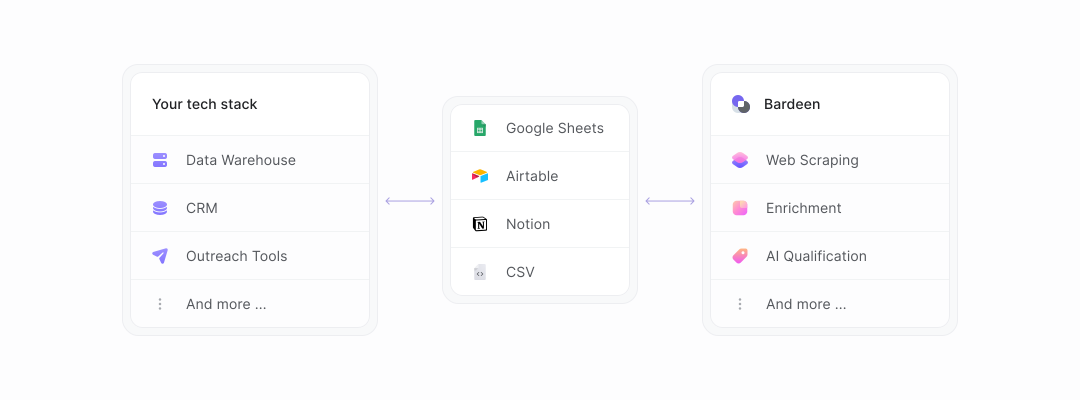
With our new Bardeen version, you can easily extract data from any website and discover new leads across the web. After extracting data from a website, use Bardeen’s powerful automation tools to validate and enrich your data, run additional scrapers on linked pages, or leverage AI to qualify leads and generate content automatically. Once your data is ready, you can easily export it to CSV, Google Sheets, Airtable, or Notion for further analysis and reporting.






SOC 2 Type II, GDPR and CASA Tier 2 and 3 certified — so you can automate with confidence at any scale.