
Google Sheets can be a powerful tool for data analysis and productivity. Still, it can also be time-consuming to create formulas and automate tasks with macros. OpenAI’s GPT can generate text, translate languages, and answer your questions. Now, imagine using GPT to automate your Google Sheets tasks!
In this article, we’ll learn how to bring the magic of AI to your spreadsheets. By following these steps, you can use GPT to automate your most common Google Sheets tasks and leverage it to save time and improve productivity.
The simplest way to add ChatGPT to Google Sheets is to bring AI to your entire browsing experience with Bardeen. There are countless ways to automate both ChatGPT (through the OpenAI integration). Here are a few workflows:
To add GPT in Google Sheets, you need to get the GPT for Sheets add-on. Open the page and click Install to get started. Watch the above video for a step-by-step visual walkthrough of the installation process.
The GPT for Sheets add-on has many built-in functions, but you need to know the proper syntax to use them. To learn more, check this support page. Now, let’s talk briefly about the top five functions.
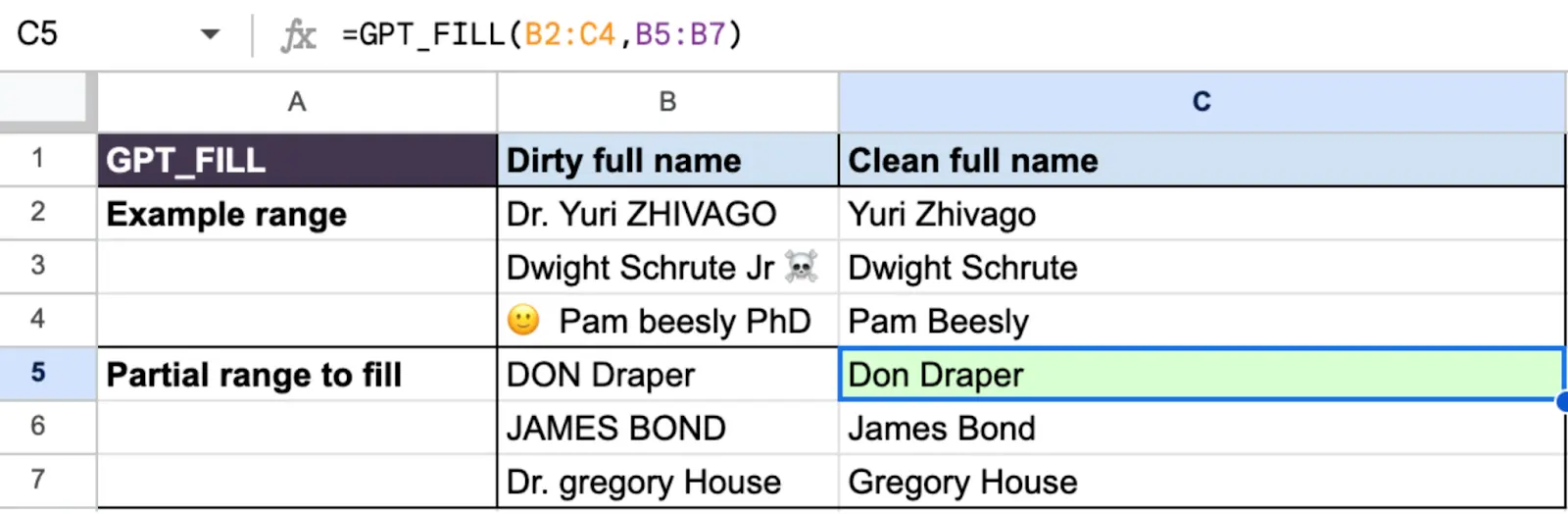
What it does: GPT_FILL learns from examples and generates coherent content to fill in missing information or blanks in your Google Sheets spreadsheet.
Example:
What it does: GPT_EDIT edits or revises your spreadsheet content based on your prompts. This function could be helpful for tasks such as proofreading, paraphrasing, or fine-tuning content to adhere to specific style guidelines.
Example:

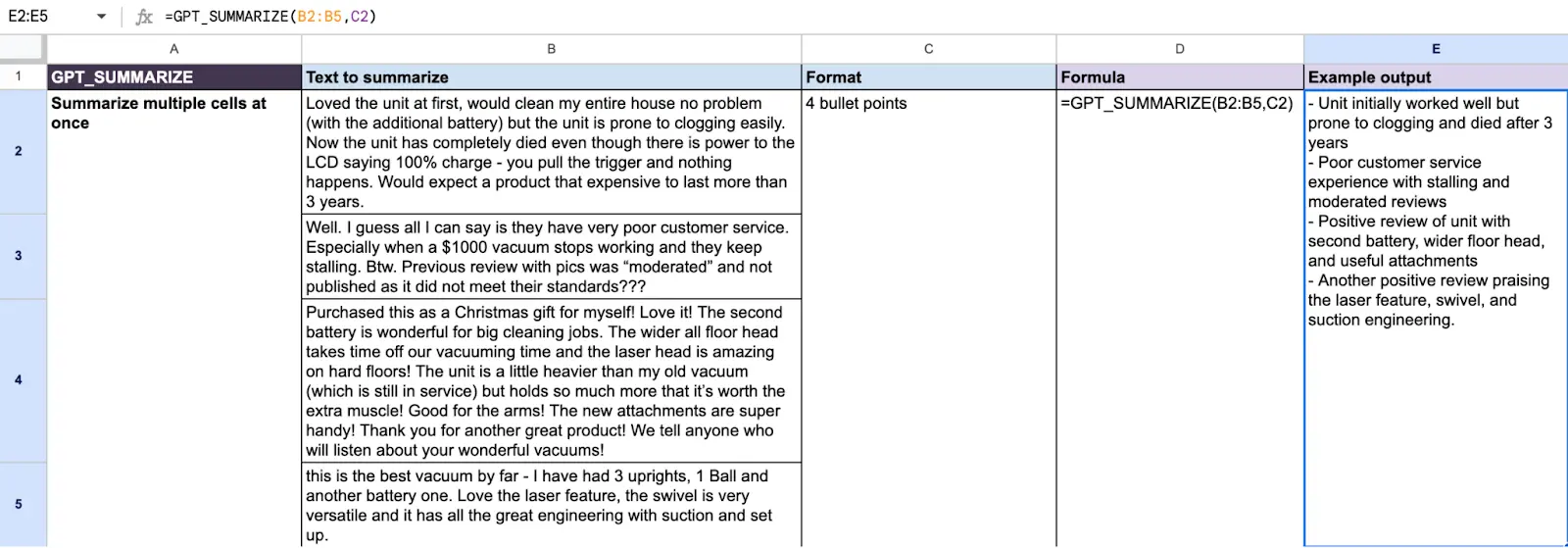
What it does: GPT_SUMMARIZE summarizes your spreadsheet content into a shorter, condensed form while retaining the key information. This makes your spreadsheet easier to read and understand.
Example:
What it does: GPT_CLASSIFY categorizes spreadsheet content into predefined classes or labels to make browsing easier. This function could be useful for sentiment analysis, topic classification, and intent recognition.
Example:

What it does: GPT_TRANSLATE utilizes GPT’s knowledge of multilingual contexts to generate a translation of the input text into another specified target language.
Example:

We hope you can apply these functions in your daily Google Sheets workflow to save time and increase productivity. Visit this article to explore more Google Sheets add-ons.
With the power of AI available to you, it’s essential to realize the importance of data. After all, AI can only do its magic if you give it relevant and accurate data to work with. Otherwise, you’ll get lukewarm results.
When it comes to gathering data, it can be a tedious process involving a lot of copy-pasting. Fortunately, an AI-powered Chrome extension called Bardeen makes it much easier. It has a point-and-click scraper and is free to get started.
Bardeen is integrated with Google Sheets and many other popular Google apps, like Docs, Drive, and Calendar. Let’s discuss three main ways to import data to Google Sheets using Bardeen.
You can use Bardeen automations to instantly scrape data from all kinds of websites, like Amazon, LinkedIn, and Zillow, and save the results to a Google Sheets spreadsheet. Here are some such automations.

Check this page for more data sourcing and research automations.
Suppose you’ve got some links with data you need but don’t want to scrape each manually. In that case, you can use Bardeen to automate the process—it’ll scrape the data in the background and add it to the spreadsheet automatically.
Watch this video if you want to learn how to scrape links from Google Sheets.
Now, here are some automations for scraping links from Google Sheets.

Read this article to explore more Google Sheets automations.
You can also use instant website data scraper models to get data from any website or build custom scraper models. If you want to try out an alternative, check our articles about top web scraper tools and extensions.
Yes. If you’ve opted for Google Workspace Labs, you can try out experimental features in Gmail, Docs, Slides, and Sheets. Open a new document and click Help me organize in the upper-left corner. Here, you can use AI to create a template for a spreadsheet and structure data neatly.
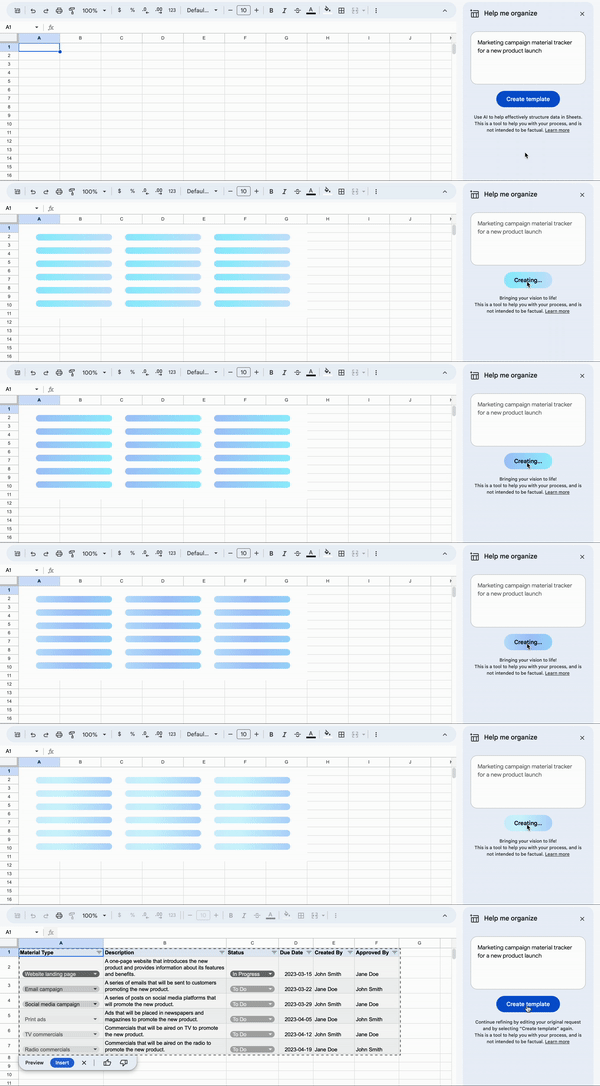
This isn’t as advanced as GPT yet, but it could be a viable alternative in the coming years. To learn more about Google Workspace Labs, check this support page.
Here are some common questions about Google Sheets.
To remove duplicates in Google Sheets, follow these steps.
Step 1: Select the range of cells that you want to check for duplicates.
Step 2: Click the Data tab, Data cleanup, and Remove duplicates.

Step 3: In the Remove duplicates dialog box, specify the columns you want to check for duplicates and click Remove duplicates.
You can use the formula “=GOOGLETRANSLATE(text, [source_language, target_language]),” replacing “text” with the cell reference or text to translate, “source_language” with the source language code, and “target_language” with the target language code. Check this page for a list of language codes.
To simplify the process, you can use these Bardeen automations instead.

Check these pages for more DeepL and OpenAI automations.
To convert Google Sheets to Excel, open the Google Sheet you want to convert, click the File tab, and Download. In the drop-down menu, select Microsoft Excel (.xlsx). The Google Sheets spreadsheet will be converted to an Excel spreadsheet and saved to your computer.
We created calendar templates in Google Sheets. Take a look or feel free to request any additional templates.
Bringing the magic of AI into your Google Sheets spreadsheets can make a huge difference in everyday use cases. Just imagine, the tasks that took hours could be done in minutes! Plus, knowing how to scrape valuable data and use it effectively with AI can help you fully leverage this cutting-edge technology.
All in all, you can use the GPT for Sheets add-on to implement GPT-powered functions in Google Sheets. To find and scrape data from the web, you can use Bardeen. Be sure to install both of these and get started right away.
If you want to streamline and automate your Google Sheets workflow, you’ll find twenty-one valuable ways to do so in our Google Sheets tips and tricks article.







SOC 2 Type II, GDPR and CASA Tier 2 and 3 certified — so you can automate with confidence at any scale.