The internet is not as connected as you may think. Information on the web is largely inaccessible where and when we need it.
And despite APIs growing exponentially, you need to visit most websites manually to get the information you need.
In this article, you will learn how to take screenshots of websites automatically and send them where you need them the most.
Practically, this means that you can get Google Analytics screenshots sent to the #marketing channel in Slack every morning.
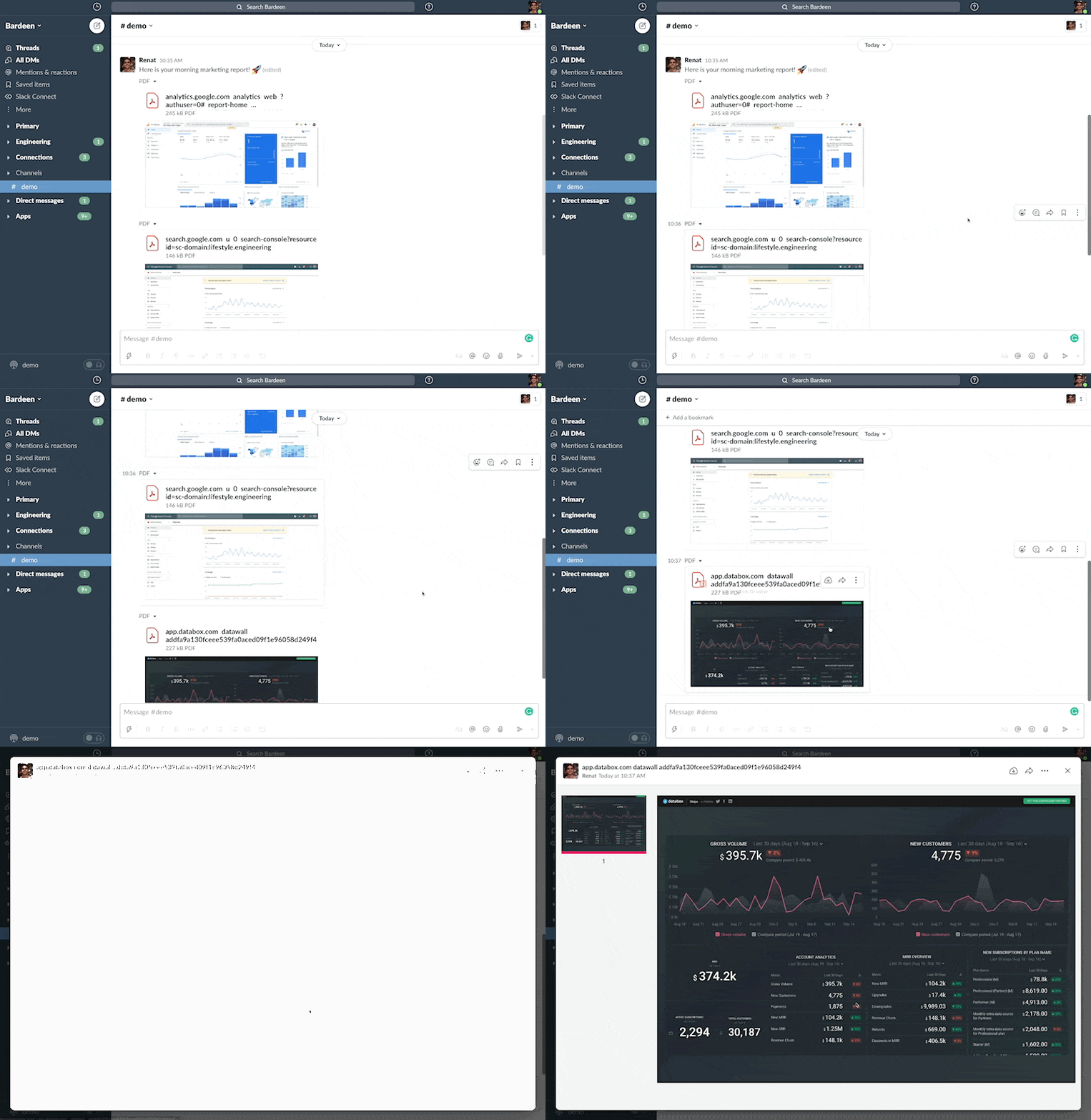
Or get screenshots of competitors’ websites uploaded to Google Drive every day (with Bardeen).
You will also learn about the best tools to take automatic screenshots of both public websites and the websites that require login to view.
Let’s automate manual tasks that eat up your time and flow!
Why would you want to take screenshots of the same websites automatically?
There are three main uses:
First, you no longer need to go to analytics dashboards every day. Instead, the data across many different websites will come to where you work.
It’s a push versus pull! When you automate this process, checking vital metrics will never fall through the cracks. As a result, both you and your team can keep an eye on the ball more easily.
Second, data is often tucked away behind logins. So to view data, you need to give access to all your team members and clients. This translates to reduced security, extra expenses when adding users to software, and lots of unnecessary friction.
Lastly, refreshing websites millions of times a day to see when something changes is just wasteful. Want to monitor competitors’ prices? See when the vaccine becomes available? Or know when the visa center finally opens? Easy!
If it's a simple task, it might make sense to screenshot manually.
Taking a screenshot of an entire webpage can be incredibly useful, whether you're capturing a bug to report, saving a snapshot for reference, or gathering information for research. While there are various tools and extensions available for this purpose, Google Chrome's Developer Tools offer a built-in, straightforward method to capture full-page screenshots without the need for additional software. This guide will walk you through the steps to utilize this feature effectively.
We give an overview of more manual ways to screenshot webpages in our post here.
To begin capturing a screenshot using Chrome's Developer Tools, you first need to access the tools themselves. This can be done through keyboard shortcuts or the Chrome menu.
Cmd + Opt + I.Ctrl + Shift + I.Once you have the Developer Tools open, you're just a few steps away from capturing a full-page screenshot.
Cmd + Shift + P.Ctrl + Shift + P.For situations where you need a screenshot of a webpage at specific dimensions, Chrome's Developer Tools also offer a solution.
This works great, but what if you want to screenshot automatically? On a schedule, over a longer period of time.
In this tutorial, we are going to use Bardeen to automate screenshot generation. Bardeen is a no-code tool to automate your repetitive manual tasks.
Unlike other online screenshot tools, Bardeen can take automatic screenshots of websites that require to be logged in to view data. This is made possible because Bardeen works locally in your browser.
The setup takes just a few minutes. All we need to do is download the browser extension and set a trigger for your automation to run.
You will be done in just a few minutes. Here is an example of setting up a screenshot playbook with Slack.
First, download the Bardeen browser extension.
ℹ️ Compatible browsers: Chrome, Brave, Edge, Opera.
You can build an automation from scratch or use one of the pre-built ones.
For our use case, the first action is to get a screenshot of a given web page in the background. The second action is to send the screenshot to Slack, Gmail, Google Drive, or any other app.
We’ve built ready-to-use playbooks for the most common use cases. Click on them to try!
When you run an automation, you will be asked to specify variables such as the website URL to take screenshots of and the file destination such as Slack channel, email recipient, or Google Drive folder.
You can also create a custom automation, if you want to add more actions or customize.
There are many tools that screenshot your screen and almost none that generate screenshots automatically and in the background.
We’ve tried the best ranking tools on G2, and we found only two working alternatives to Bardeen. Here they are.
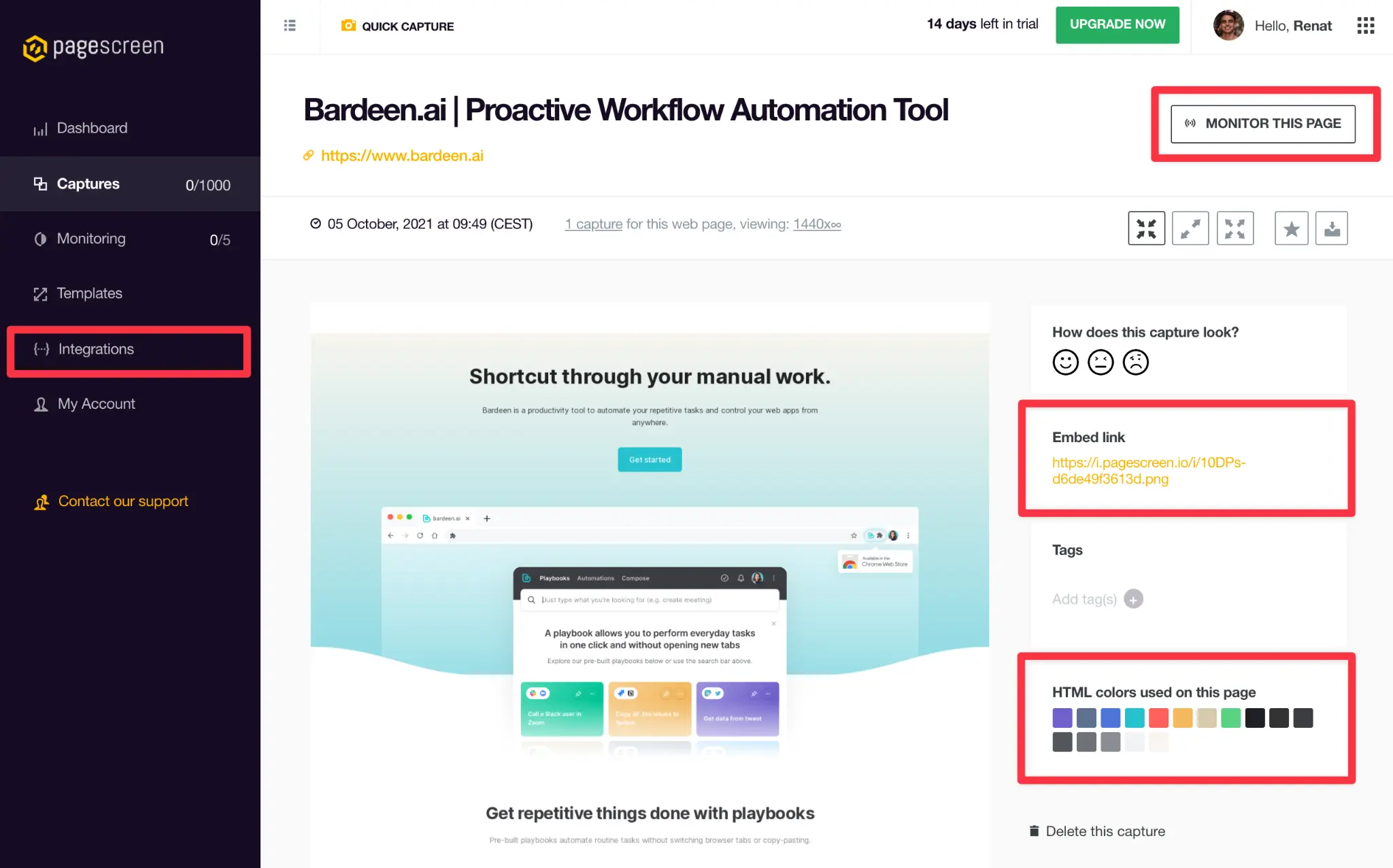
Pagescreen is a website monitoring and online screenshot tool with an easy-to-use interface. You’ll be ready to go in just 5 minutes!
The tool only works on public websites, however.
Pros:
Cons:
Pricing:
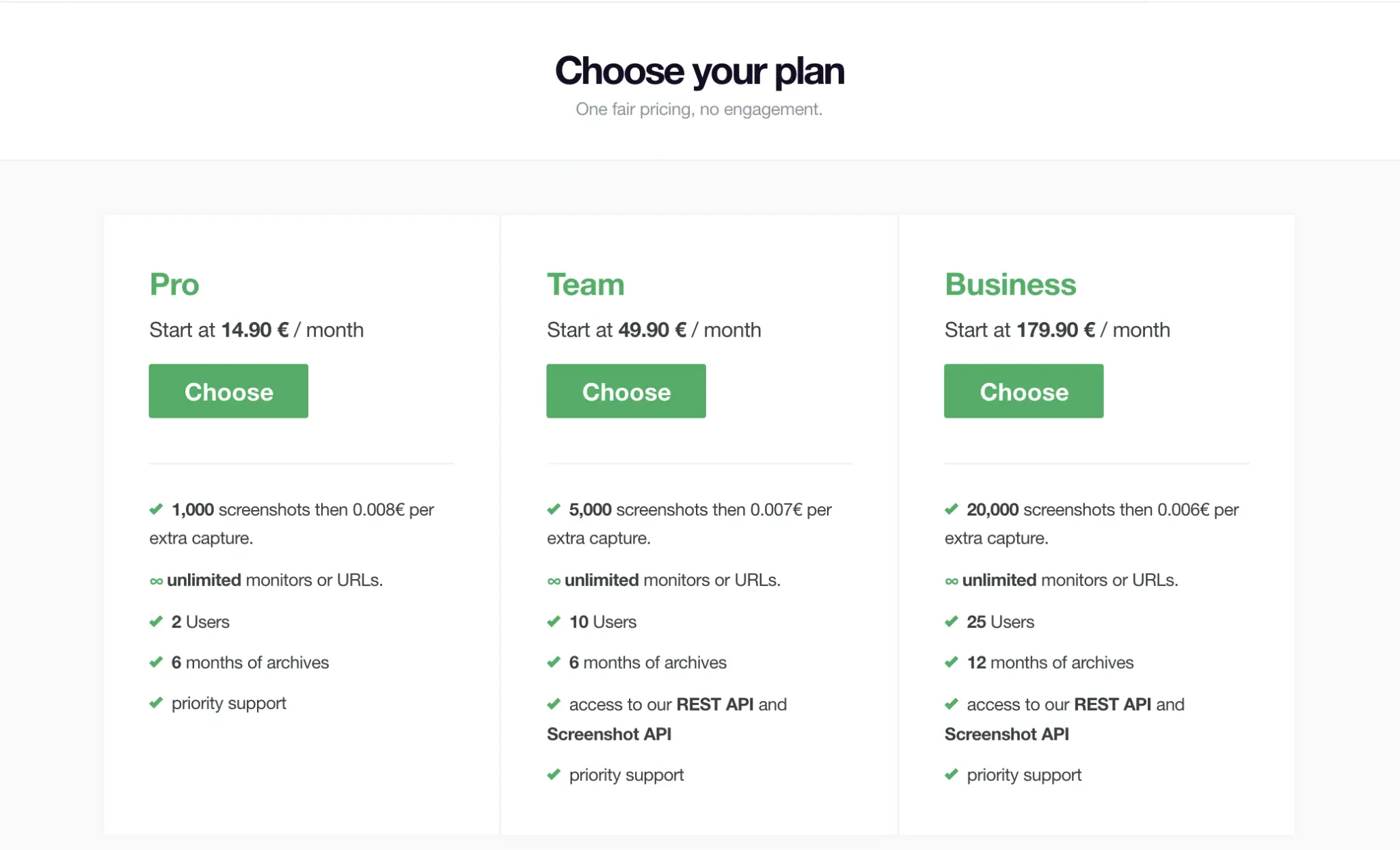
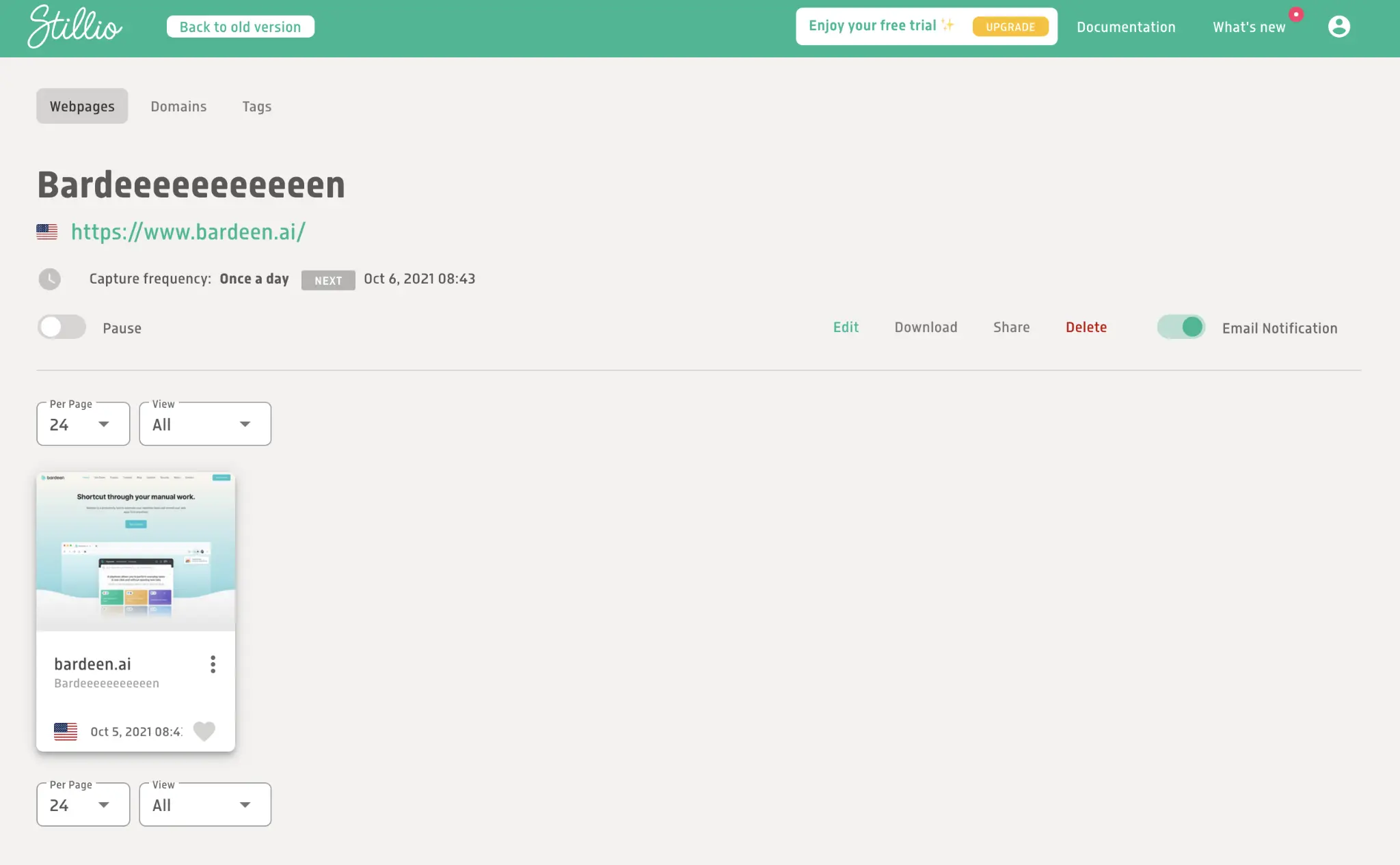
Stillio is a website screenshot tool that integrates with Dropbox and Google Drive.
It took us 20 minutes to set up. ⏳
The big limitation of Stillo is that you cannot use it if you have multiple clients to report to.
All screenshots get uploaded to one folder and emailed to the same list of people. Unfortunately, those things are not yet customizable.
Pros:
Cons:
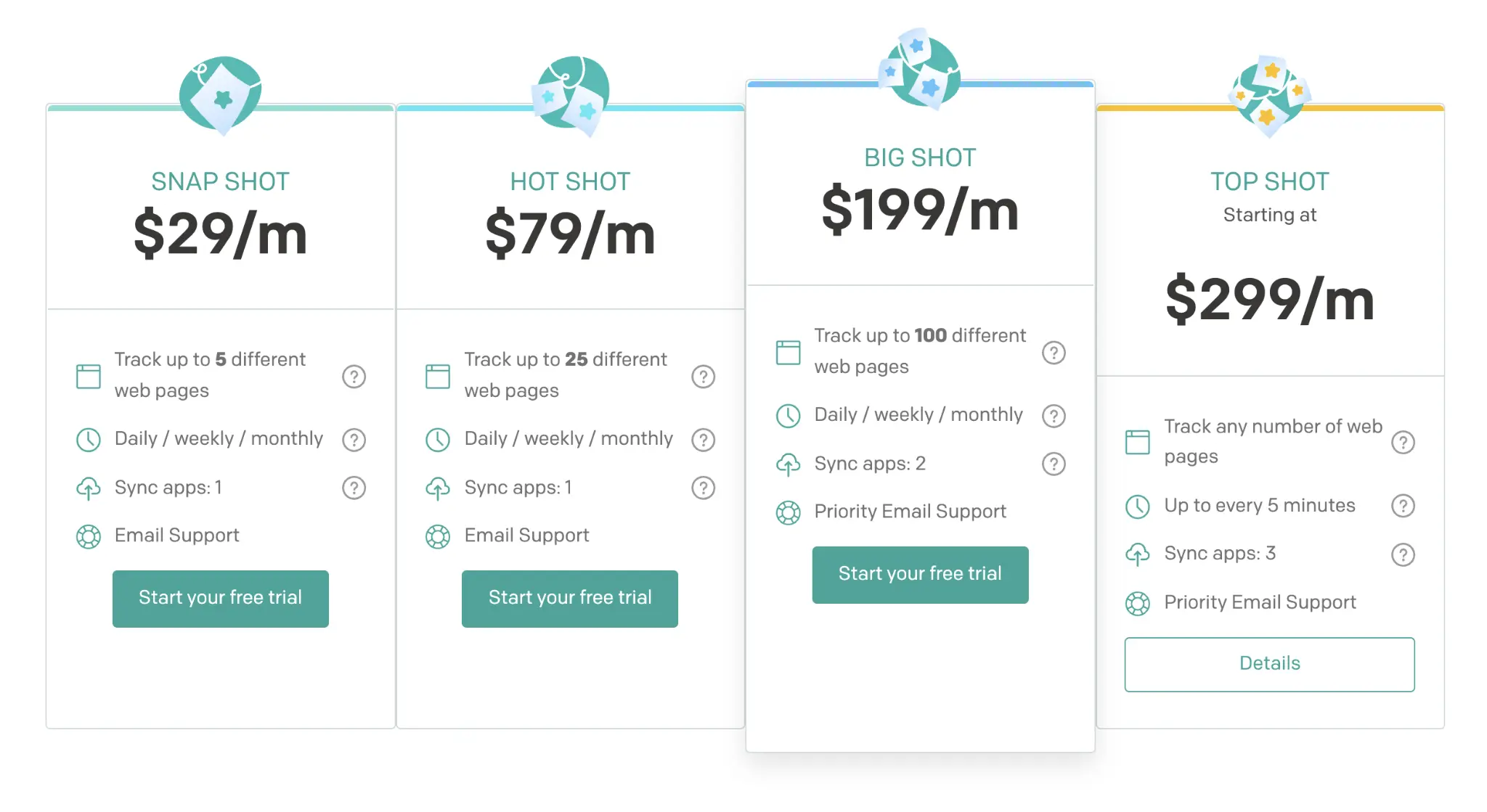
Pricing:
To get total flexibility, you can capture screenshots of websites with APIs. You do need to be technical to set this app, however.
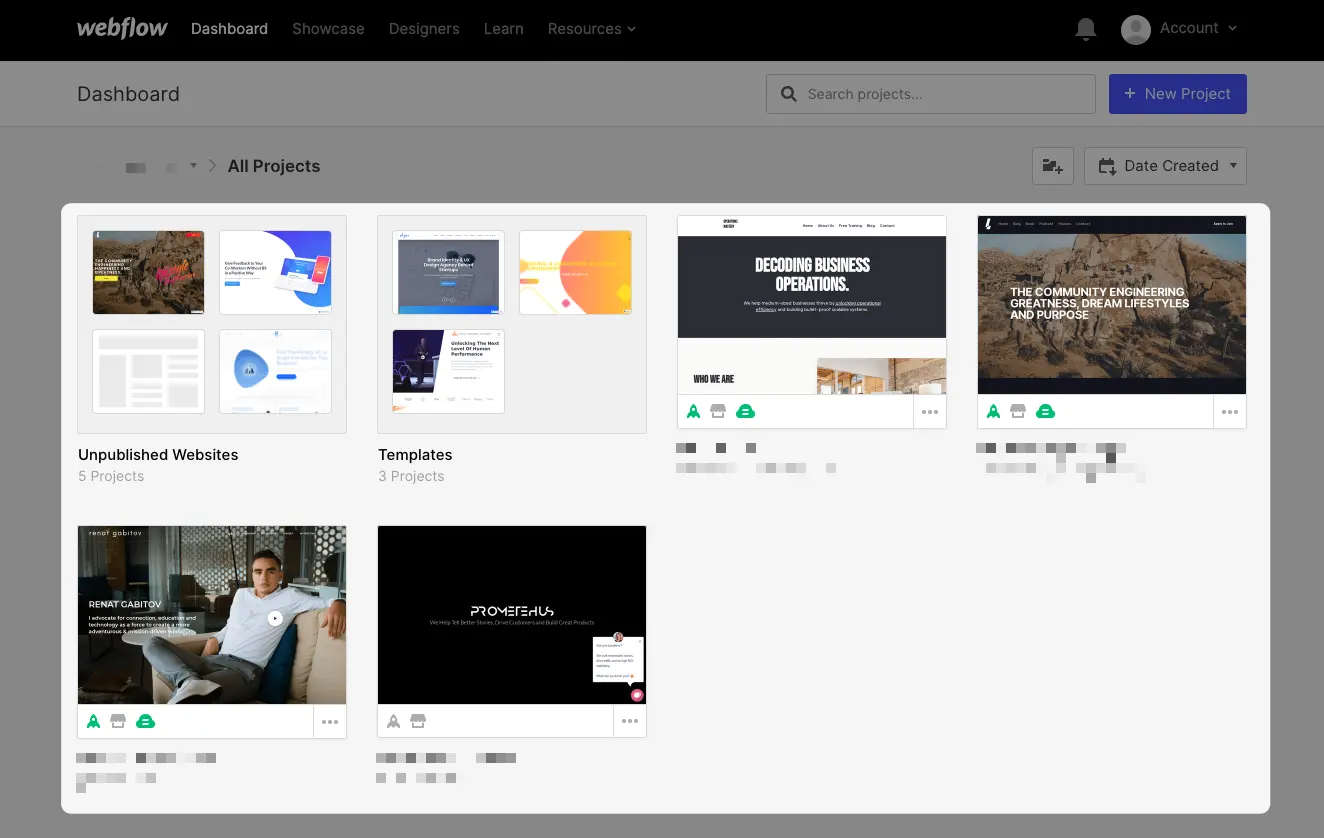
Using screenshots inside your products can improve the user experience significantly. For example, Webflow (a website builder tool) shows screenshots of home pages in its dashboard. The website screenshots make it much easier to find the website you want to work on.
You can use API tools such as GetScreenshot to generate screenshots.
Alternatively, you can use this guide to capture screenshots using Google Functions for Firebase for free.
There are things we don’t know we don’t know. Explore the following use cases to discover new opportunities to save your precious time and to work smarter.
Every personal growth author talks about making goals visible. Every morning they preach, you shall review goals. And they do this for a reason. It works!
Recalling priorities allows us to get clarity when we are in the weeds.
Measuring goals alone isn’t enough. We must keep them visible.
In the professional context, marketers can get screenshots of Google Analytics.
Product managers can get vital product metrics from Posthog or Mixpanel.
And salespeople can get their Pipedrive or Salesforce dashboards with quotas to see if they are on track.
Facebook marketers know exactly what we are talking about here! Doing ad reporting on Facebook is excruciatingly painful.
When it comes to Facebook ad reporting, you have three options:
The first two options take hours to set up. And taking screenshots of the Ads Manager is manual and time-consuming.
Instead, you can use Bardeen to take screenshots automatically. It takes under a minute to set up.
To share screenshots with clients daily, create a shared Google Drive folder and use this playbook.
We recommend you to configure multiple views in your Facebook Ads Manager to show different types of breakdowns. Use a URL for each view inside the playbook.
Similarly, you can use screenshot tools for pricing intelligence.
This is essential for businesses that deal with auctions or government contacts.
You can monitor competitors’ bids and pricing pages to get the latest data.
To start monitoring competitors’ prices, run a screenshot playbook on competitors’ pricing pages similar.
If you happen to be working with contractors, keeping an eye on the expenses and timesheets is the routine.
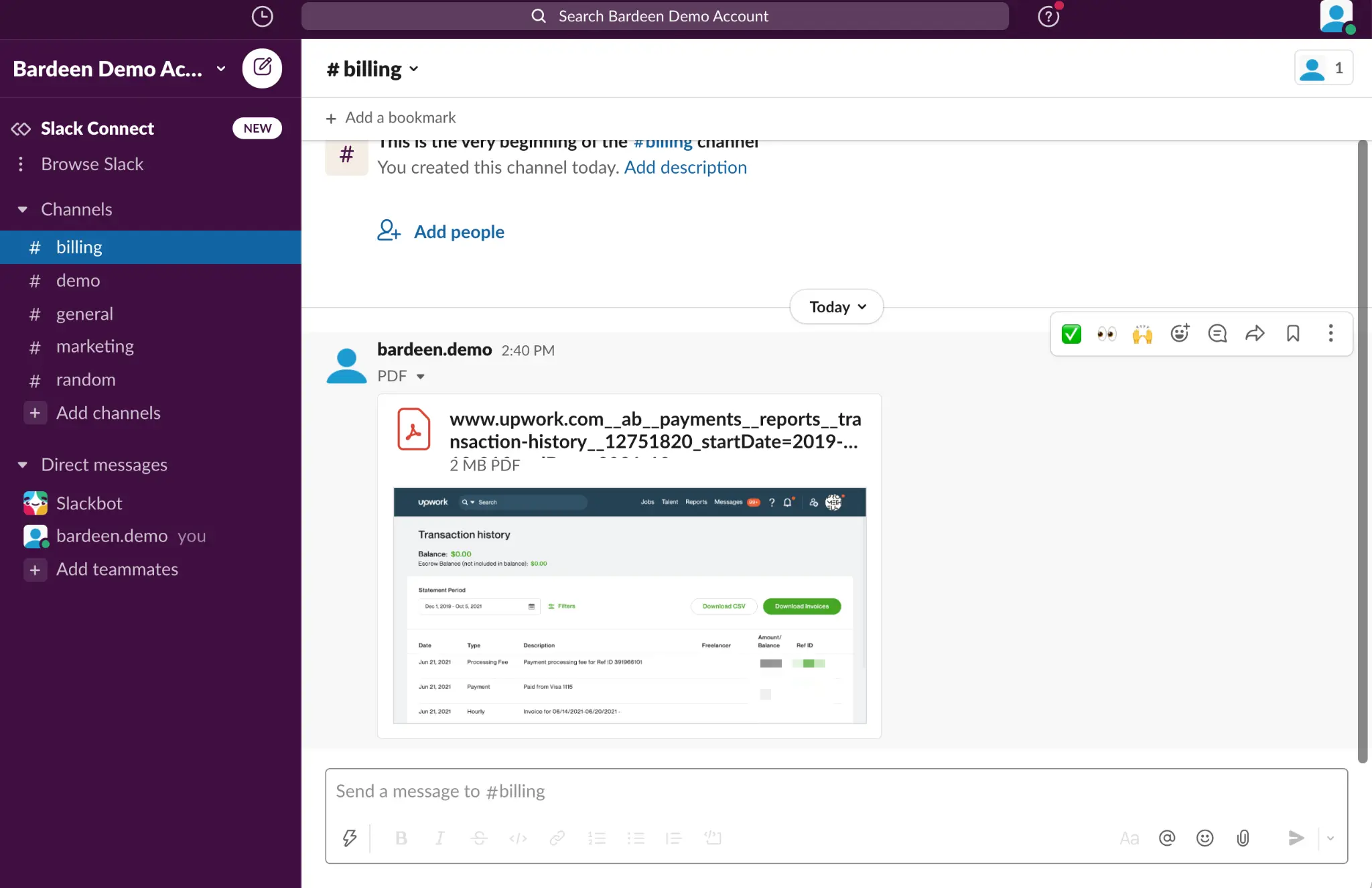
Set up automated screenshots for Upwork and Toggl accounts to get your weekly reports sent in one place.
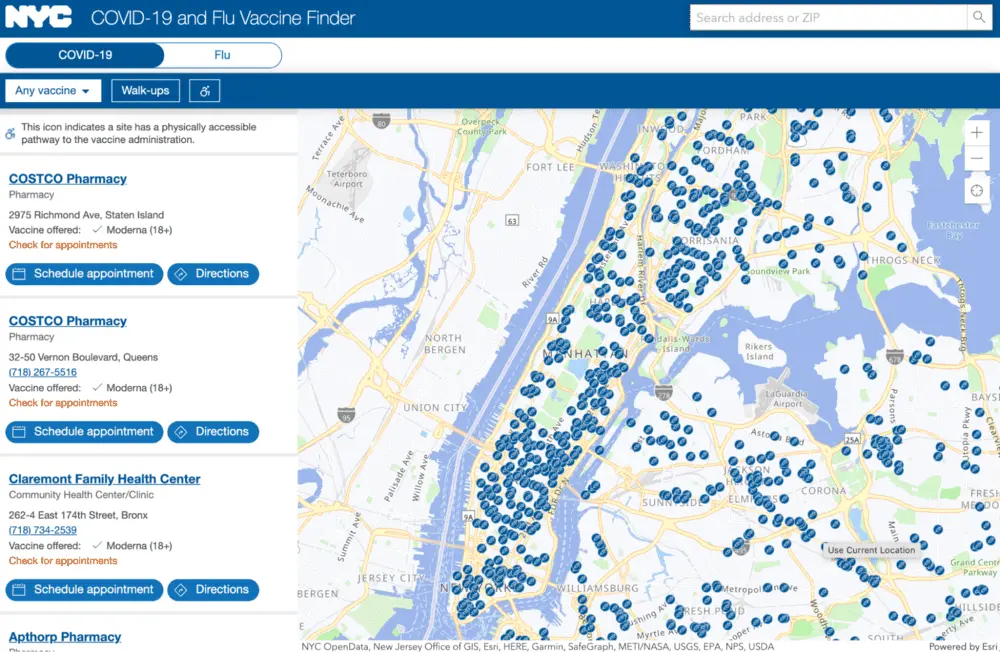
If vaccines are hard to find in your region, you can monitor when they become available without checking websites multiple times a day.
In the following section, we will explore how to share screenshots of the currently opened websites with a shortcut.
💡 Pro tip: You can add a trigger to any of these automations to take screenshots automatically. Bardeen has two types of time triggers: periodic and time-based.
The periodic trigger takes a screenshot every so often - 1h, 1 day, 1 week.
The time-based trigger takes a screenshot at a specific hour of the day (“at 6 am”).
Explore all Google Drive automation, and Dropbox automations.
Share web pages and screenshots in Slack channels or direct messages with this shortcut. Traditionally, you need to use a screen capture tool, download the file, open a new tab, navigate to the right channel in Slack, and drag the file in there.
With this playbook, all you need to do is specify a Slack channel! Everything else will happen in the background.
Explore all Slack automation.
If you want to send the currently opened page via email, this playbook will do exactly that. The playbook will upload the screenshot to Google Drive and send an email with the access link.
Explore all Gmail automation.
Additionally, you may want to create a collection of website design references in a Google Drive folder. Instead of getting a list of URLs in a spreadsheet, you can view website screenshots all in one folder.
You can also create a custom playbook with your favorite apps. Just use the “get current page as PDF” action.
Explore all Google Drive automation, and Dropbox automations.
Information is more valuable when reviewed frequently. However, there is a lot of friction that stands in the way.
Use automatic screenshot tools to bring dashboards and reports all in one place. Start leveraging automation tools to work smarter.
You can use the Bardeen browser extension (or other apps) to get screenshots automatically and keep your data secure on your machine.
Do you have an interesting use case for automatic screenshots? Drop your ideas in the comments below, and we will help you build automations.
Up next, check out how to get notified when a website changes.
Enjoy!







SOC 2 Type II, GDPR and CASA Tier 2 and 3 certified — so you can automate with confidence at any scale.