Business management genius Peter Drucker is often quoted saying, “What gets measured, gets managed.” If you use Notion, you are already ahead of the game, keeping everything in one place and visible.
But Notion databases and tables are very limited for data analysis and more complex calculations. Formulas are super confusing, and functions are hard to create. Plus, you can’t build graphs to visualize information.
As you’ll probably agree, Google Sheets is a far better choice for that. Unfortunately, most people who want to transfer data from Notion to Google Sheets have to manually copy-paste data and export CSVs, then and then import them to Sheets. It’s time-consuming and frustrating.
Supercharge your productivity with Bardeen! Seamlessly export data from Notion to Google Sheets and streamline your workflow. Try it now and unlock a new level of efficiency!
In this article, we’ll show you how you create a new Google Sheet with data from Notion with a shortcut like this:
Since you’re looking to transfer data you’ve probably collected over a long period of time, it’s important to be careful in choosing the right tool. Let’s discuss the most reliable and secure ways to do that.
Although this workflow automation tool is capable of a lot more, Bardeen makes the process of copying data from Notion to Google Sheets an absolute breeze.
Try out this automation to create a new Google Sheet with your Notion data.
Once you've connected your Google and Notion accounts, you just need to select the database and the Sheet for the data exchange. After that, just run the Playbook, sit back, and let the magic happen! In the next section, we’ll go over the steps on how to do this.
One great feature about Bardeen is that once you’ve got the integrations in place, you can set up other automations with it too. Think about it: everything from saving contacts from an email thread to copying Google Calendar meetings to a Notion page. All that and much more is possible with Bardeen. We will explore that in more detail later in this article.
Explore more Notion and Google Sheets automations and streamline your process.
If you’re looking to transfer data once and then forget about it, doing it the manual way might be the way to go.
For this, you just need to go to the Notion page you want to transfer, click on the ‘⋯’ icon, and click on Export.
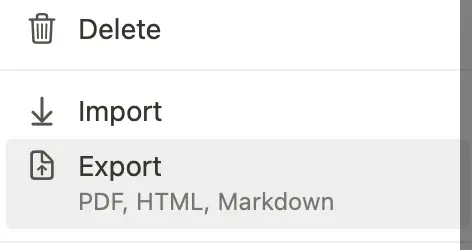
Once you’ve downloaded the CSV file, create a new Google Sheet.
Then go to the File menu, and “import” it there.
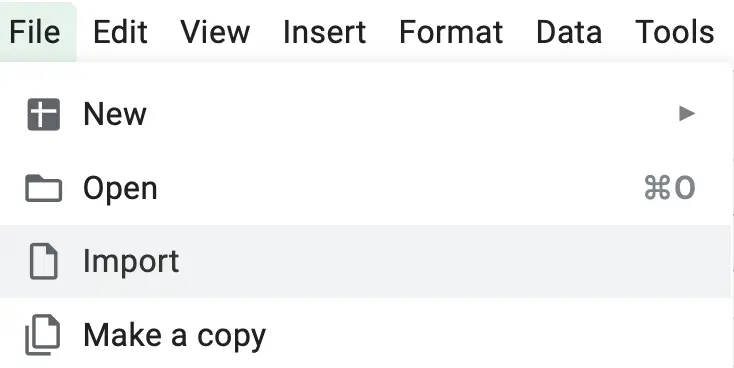
Although this process is reliable, the downside is that it takes a few minutes for every export. … And the data doesn’t update automatically. So if you plan on using both platforms and have them sync with each other, try the next tool!
As the name suggests, Notion2Sheets was built specifically to connect data between both Notion and Google Sheets.
The process is fairly straightforward: install the add-on and connect it to your Google account. When you open a Google Sheet, it’ll pop up in the right-side menu. You need to then connect your Workspace and select the pages you want it to access.
After everything is in place, you can just click Start Sync, and it goes along.
So, what's the catch? If you’re expecting a smooth process, the 6-hour-long two-way sync window will surely keep you waiting. Plus, in the free plan, you can only integrate one database at a time. For people who use Notion for a variety of things, this can be a productivity bottleneck.
Primarily a revenue analytics platform for Shopify stores, Airboxr also offers similar functionality as Notion2Sheets. Just connect your database to Sheets, select the specific database you want to import from, select the relevant columns, and—voilà—it’s done!
They’ve outlined the steps in this article, but the process is more or less identical to Notion2Sheets. If you’re a digital marketer who has to deal with a lot of data from different sources, Airboxr might be right up your alley. Besides Notion and Google Sheets, Airboxr can connect to Facebook Ads, HubSpot, Mailchimp, and Shopify.
We’ve talked about four main ways to copy data from Notion to Google Sheets. Now, it’s time to put these methods to work! In this video, you’ll learn how to do it step-by-step, so follow along.
Yes! Before you do this, be sure to head over to the Settings & Members tab and connect Google Drive to your Notion account.
Once that’s done, go to the Notion page you want to embed your sheet in and press the forward slash “/” button. In the drop-down menu, scroll down to Embeds and paste the link to the Google Sheet.
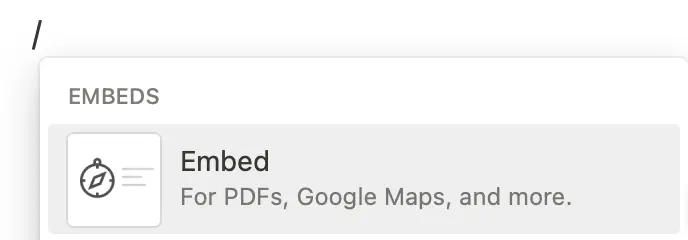
The same can be done for other Google platforms, like YouTube and Maps. Just make sure that the links you paste are viewable by anyone. Otherwise, they won’t appear on the page.
Here are 12 other things you can embed to Notion to boost your productivity.
Once you’ve used the Notion < > Sheets automation with Bardeen, there are almost unlimited possibilities to save time waiting for you.
Here are a few of the best pre-built ones.
Copy Google Calendar meetings to Notion: Using Google Calendar to manage your meetings when you use Notion for pretty much everything else is not efficient. With this Playbook, you can simply copy over your Google Calendar meetings to a Notion page without any copy-pasting. Or explore more Google Calendar<> Notion Integrations and automations.
Save profiles from LinkedIn search to Notion: LinkedIn includes a wealth of data for any working professional, and with this Playbook, you can neatly scrape profile data into a Notion database. Or explore more LinkedIn <> Notion Integrations and automations.
Save Instagram profile to Notion: This is similar to the above automation, but it works for Instagram instead, which can be a great source to find influencers and brand ambassadors. Or explore more Instagram <> Notion Integrations and automations.
Save contacts from email thread to Notion: As a CRM, Gmail might work out for a smaller customer base, but it'll be a massive bottleneck over the long term. Instead, using Notion can be much more useful, and this Playbook will allow you to do just that.
Or explore more Gmail <> Notion Integrations and automations.
To learn about 200 other Notion automations, visit the Notion Automation Hub. It is a free resource that will give you access to 50+ automations, 16+ Database Templates, and vast learning resources.
Bardeen also support 200 other Google Sheets automations, automate your Google Sheets work flow with Bardeen.
Whether you want to go back and forth between Notion and Google Sheets or just transfer all your data once and for all, you have four great options to choose from. So, go ahead and try the one that suits you best.
Feel free to follow the steps in the video to copy over your Notion data to Google Sheets automatically and kiss goodbye to hours of manual copy-pasting and tedious formatting!
Up next, check out the 7 best Chrome extensions for Notion and how to add AI and ChatGPT to Google Sheets to take your productivity to the next level.







SOC 2 Type II, GDPR and CASA Tier 2 and 3 certified — so you can automate with confidence at any scale.