This workflow automatically labels and filters new subscription emails in Gmail as they arrive, based on specified criteria. The automation streamlines inbox management, making it easier to organize and prioritize emails.
Upon receiving an email that matches the filter criteria (e.g., subject line), the specified label is immediately applied, effectively categorizing the email for easy retrieval and organization. Ideal use cases include:
Note: You can customize the filter criteria and labels as per your needs. This flexibility allows for personalized inbox management.
Enhance your email productivity by automating the labeling and filtering of new subscription emails in Gmail with Bardeen.
To start, ensure the Bardeen app is installed on your device.
With Bardeen installed, open the Magic Box and input the following prompt:
when new subscription emails arrive, label and filter in Gmail.
Make sure to set up the necessary integrations for the workflow. This requires access to Gmail for both the source and destination of your emails.
Upon configuration, execute the workflow. This workflow is designed to:
Managing subscription emails in Gmail can feel like a daunting task, but with the right tools and knowledge, it becomes a breeze. Gmail's powerful filtering capabilities allow you to automatically label and sort your incoming subscription emails, ensuring your inbox remains organized and clutter-free. By utilizing search operators and creating specific filters, you can direct these emails to designated labels, making them easier to find and manage.
To streamline this process, consider using Bardeen to automate the labeling and filtering of new subscription emails in Gmail. This workflow can significantly enhance your email productivity.
Creating labels in Gmail is the first step towards organizing your subscription emails. Navigate to the settings in Gmail, find the 'Labels' section, and create a new label for your subscriptions. Next, use the 'Filters and Blocked Addresses' feature to set up rules that automatically apply these labels to incoming emails based on criteria such as sender or keywords like 'unsubscribe'. This method not only declutters your inbox but also saves you the hassle of manually sorting through each email.
Gmail's search operators are a game-changer for filtering emails with precision. By using specific commands in the search bar, you can create filters that target emails containing certain words, attachments, or those from particular senders. For instance, using 'has:attachment' helps in identifying emails with attachments, while 'from:' followed by an email address can filter emails from a specific sender. Combining these operators allows for creating highly customized filters that cater to your unique email management needs.
For those looking to further automate their email organization, Bardeen offers a seamless solution. By automating the application of labels and the filtering process, Bardeen can transform your Gmail experience, making it more efficient and organized. This approach not only saves time but also ensures that your inbox stays tidy with minimal effort.
Enhance your email productivity by automating the labeling and filtering of new subscription emails in Gmail with Bardeen.
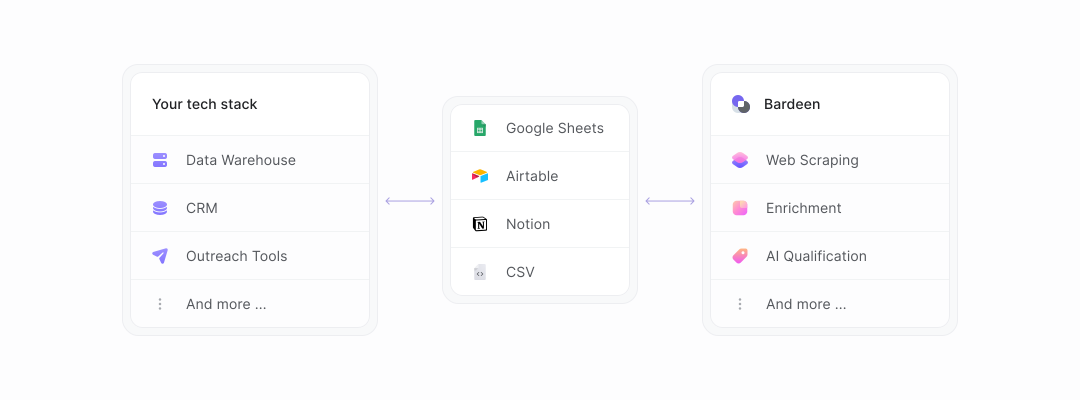
With our new Bardeen version, you can easily extract data from any website and discover new leads across the web. After extracting data from a website, use Bardeen’s powerful automation tools to validate and enrich your data, run additional scrapers on linked pages, or leverage AI to qualify leads and generate content automatically. Once your data is ready, you can easily export it to CSV, Google Sheets, Airtable, or Notion for further analysis and reporting.






SOC 2 Type II, GDPR and CASA Tier 2 and 3 certified — so you can automate with confidence at any scale.