Reach your future customers with validated phone numbers and emails.
Enrich any scraped lead with verified contact data from multiple premium providers.
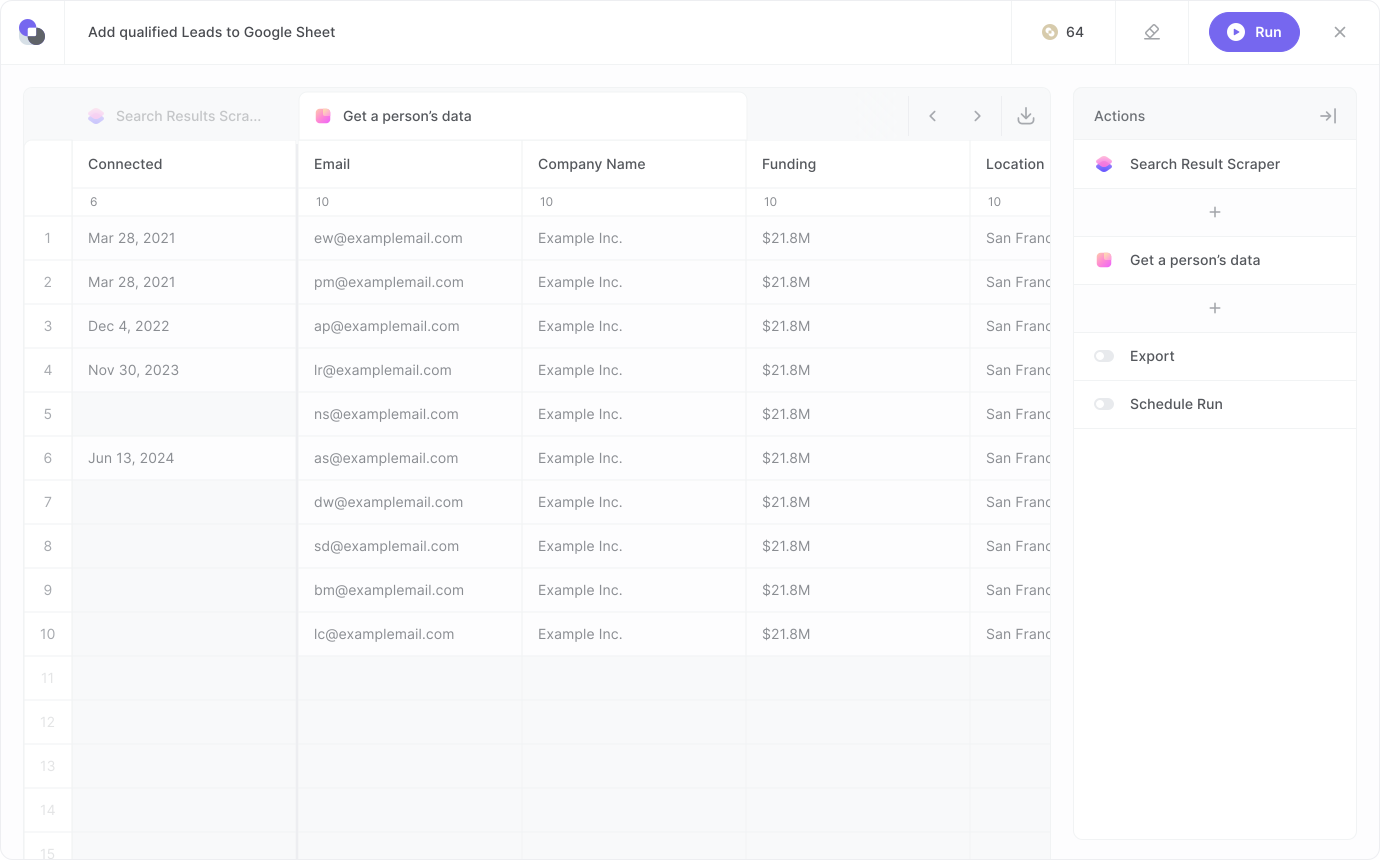
Get a person's data
Enrich contacts
Access fresh contact information by providing an email address or social link. From current company information to location and social profiles, Bardeen maximizes coverage by checking multiple sources.
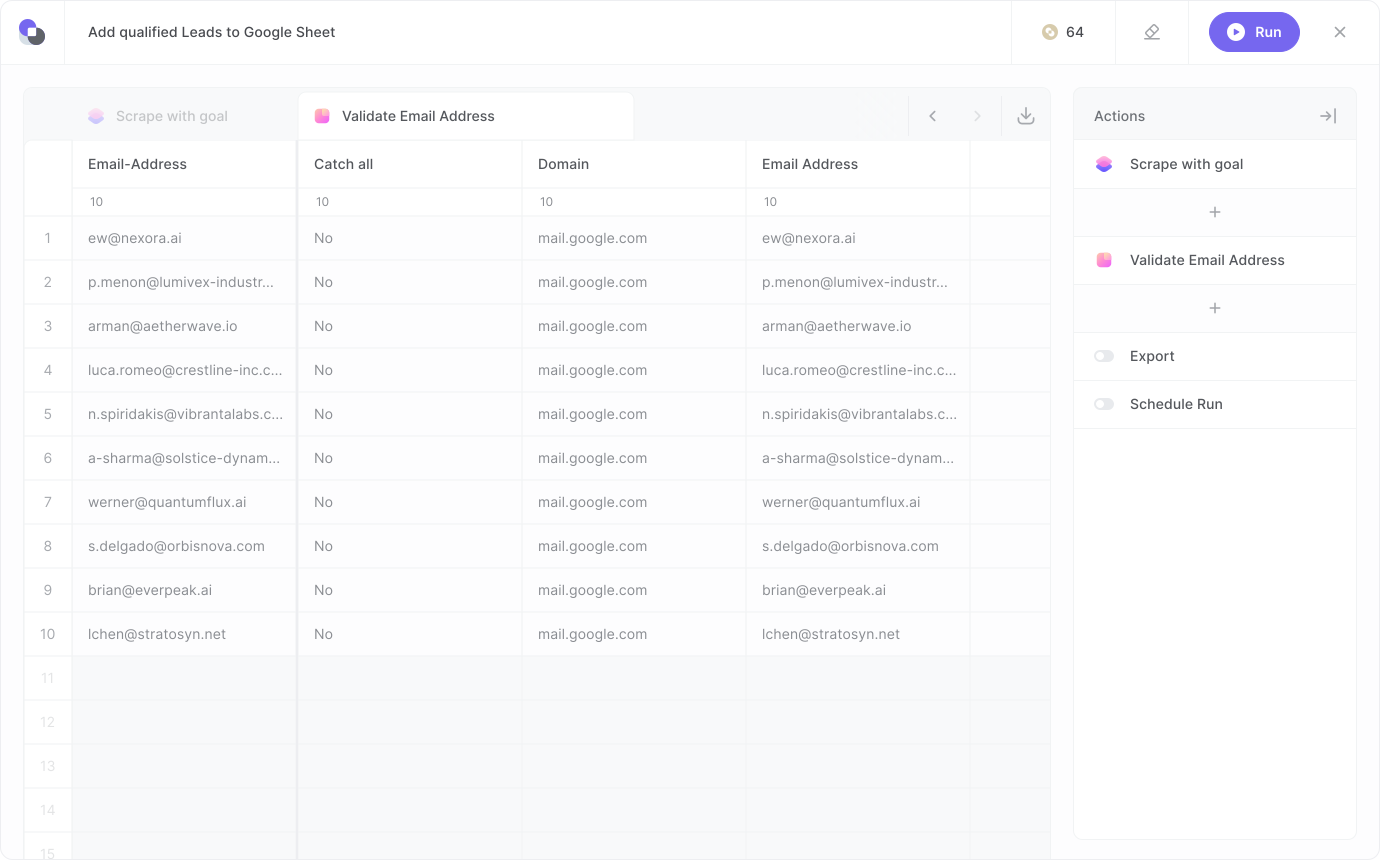
Ensure your data is clean, accurate, and ready for action. Bardeen validates emails and phone numbers in your workflows —detecting invalid entries — so you can trust every contact and focus on what matters most.
Discover recent funding rounds and qualify companies based on their tech stack, revenue, or employee count. Just enter the company's URL into Bardeen's Enrichment action and watch the magic happen.
The most cost-effective way to connect with your leads.
Gathering contact info on leads and prospects can be a major time sink.
Clicking on websites, scanning through endless text to find crucial information, and flipping through LinkedIn profiles — it all adds up. With Bardeen Enrichment, get up-to-date information in just a few clicks and scale your research efforts in no time.
Fill every gap in your CRM with enriched company and personal data.
Access current company and contact info from top providers using social links, emails, or names.
Reduce bounce rates by verifying users’ email addresses before sending.
What else you can do with Bardeen
With Bardeen, you can do much more than just enrichment. Use Bardeen’s powerful scraper to extract data from any website, import your existing data from tools like Google Sheets, Notion, or Airtable, or leverage AI to qualify leads and generate content automatically. Once your data is ready, you can easily export it back to your preferred platform or as a CSV for further analysis and reporting.