Find search intent from a Google Search page and save to Airtable

This playbook will find search intent from the Google search results page and classify the results as commercial, informational, commercial investigation, and transactional. It will then save the results to a specified Airtable.
Bardeen no longer supports Autobooks & Playbooks. Learn more about the new Bardeen.
Get search results from the web
Action
Get rows of a table
Action
Classify text
Action
Get current page as HTML
Action
Get page as HTML
Action
Add data to Airtable
Action
Steps:

Understanding search intent is critical for SEO and content strategy. Bardeen’s workflow automation tool enables you to classify the intent of Google Search results and store them in Airtable for analysis. By categorizing search results into commercial, informational, commercial investigation, and transactional, you can better align your content with what your audience is seeking, leading to improved search engine rankings and user engagement.

Here is how this workflow processes Google Search results and saves them to Airtable:

  • Step 1: Scrape Google Search Results - The Scraper extracts data from the active tab where a Google Search has been made, capturing the top 10 search results using a predefined template.
  • Step 2: Extract Data Rows - Bardeen retrieves the rows of data from the table created in the previous step, preparing them for classification.
  • Step 3: Classify Search Intent - Utilizing OpenAI, the text from the search results is classified into categories like commercial or informational, providing insights into user intent.
  • Step 4: Capture Current Page HTML - The HTML content of the current page is captured for any additional context needed for the classification.
  • Step 5: Save to Airtable - The classified data along with the search results are added to a specified Airtable, allowing for organized storage and further analysis.

The new Bardeen – Find leads no one else does:

With our new Bardeen version, you can easily extract data from any website and discover new leads across the web. After extracting data from a website, use Bardeen’s powerful automation tools to validate and enrich your data, run additional scrapers on linked pages, or leverage AI to qualify leads and generate content automatically. Once your data is ready, you can easily export it to CSV, Google Sheets, Airtable, or Notion for further analysis and reporting.
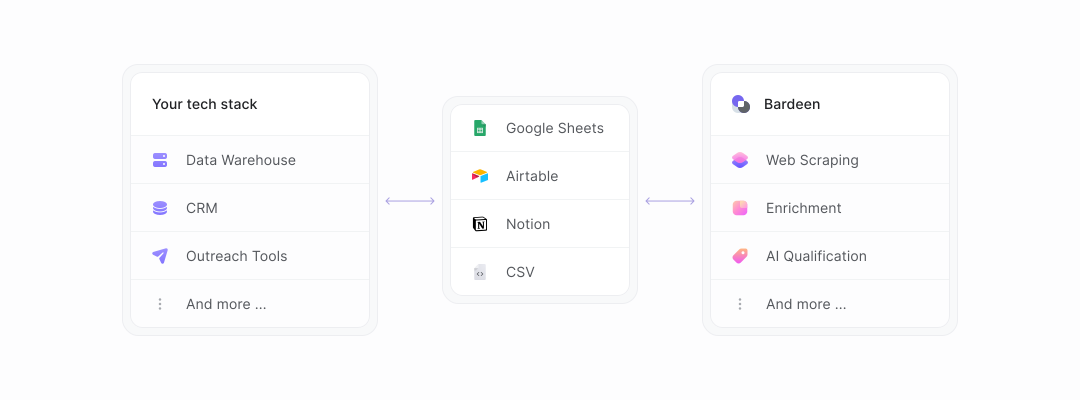

How Bardeen integrates with your existing system:
With Bardeen, you can easily import and export data to spreadsheets or CSV files, then push it to your favorite CRM or outreach tool — like Salesforce, HubSpot, Pipedrive, Apollo.io, or any platform that supports CSV. Most tools offer built-in import options or third-party solutions, making integration seamless and keeping your workflow uninterrupted.
Data Sync between Bardeen and your Tech Stack

"Our Sales and Ops teams can do more in less time to help serve our customers better."

Alex Bouaziz
Co-Founder & CEO at deel.
Enterprise-grade security

SOC 2 Type II, GDPR and CASA Tier 2 and 3 certified — so you can automate with confidence at any scale.

Frequently asked questions

What is Bardeen?
What tools does Bardeen replace for me?
Who benefits the most from using Bardeen?
How does Bardeen integrate with existing tools and systems?
What are common use cases I can accomplish with Bardeen?
By clicking “Accept”, you agree to the storing of cookies. View our Privacy Policy for more information.